> ## Documentation Index
> Fetch the complete documentation index at: https://docs.stardex.com/llms.txt
> Use this file to discover all available pages before exploring further.
# Claude connector
> Connect Claude to Stardex through MCP and use your recruiting data in Claude conversations.
[Watch the video on Loom](https://www.loom.com/share/1417c1c8e88b45b482f6a81347d50f9f)
You can talk to your stardex data in ChatGPT / Claude / your favorite LLM now! This is experimental, and won’t support all activities that you can do but we will keep adding more support over time. We would love your feedback!
Queries it can support:
* Can you find me xyz type of candidates?
* Show me a list of candidates in vp marketing at Tekto job
* Add a note to candidate jackie murao that she’s not interested in this job
* Find the latest email we have with jackie murao
* How many people are in my database with python experience
Connectors don’t read any other data from your LLM app. It only looks at information that it’s provided in the chat.
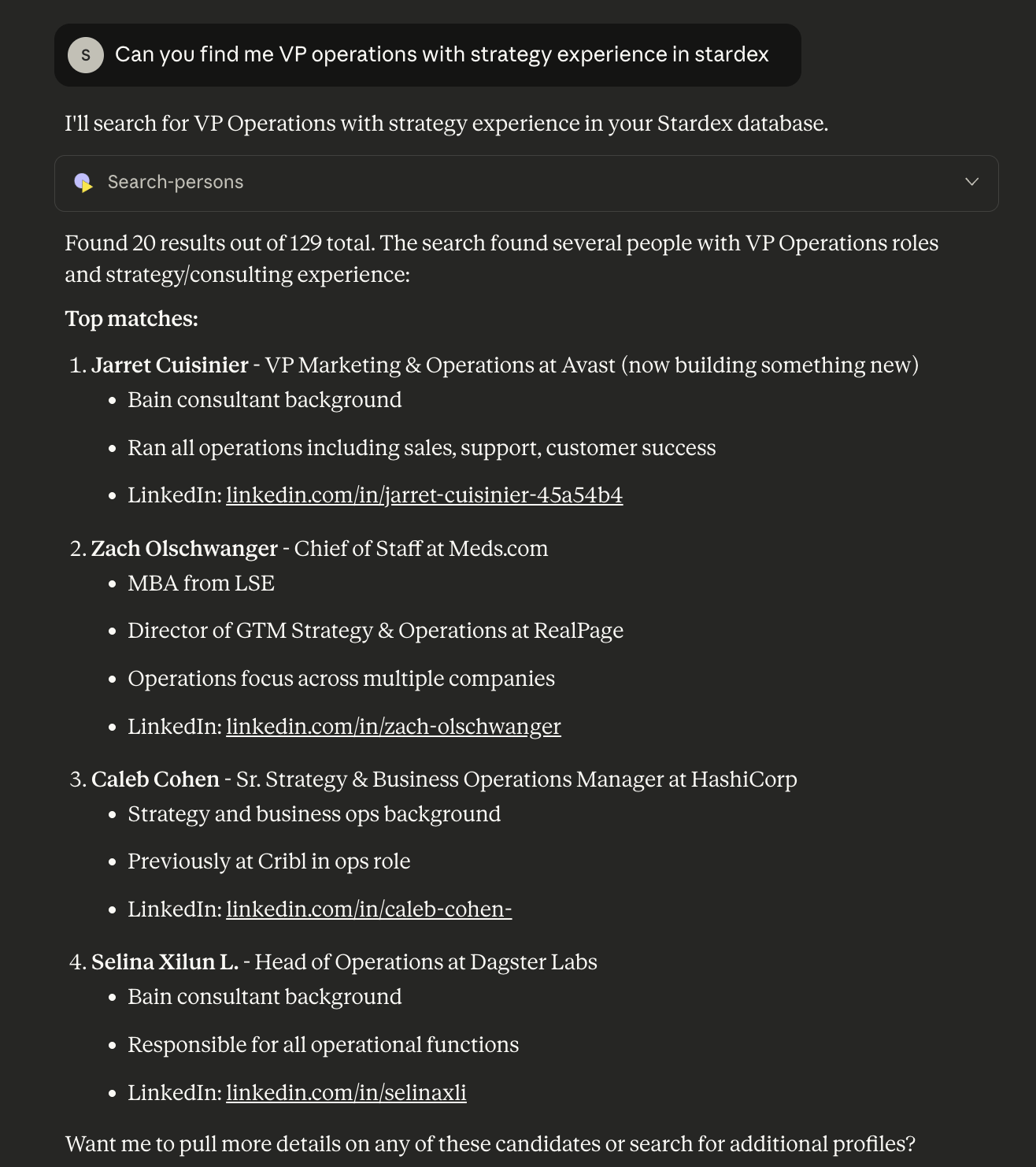
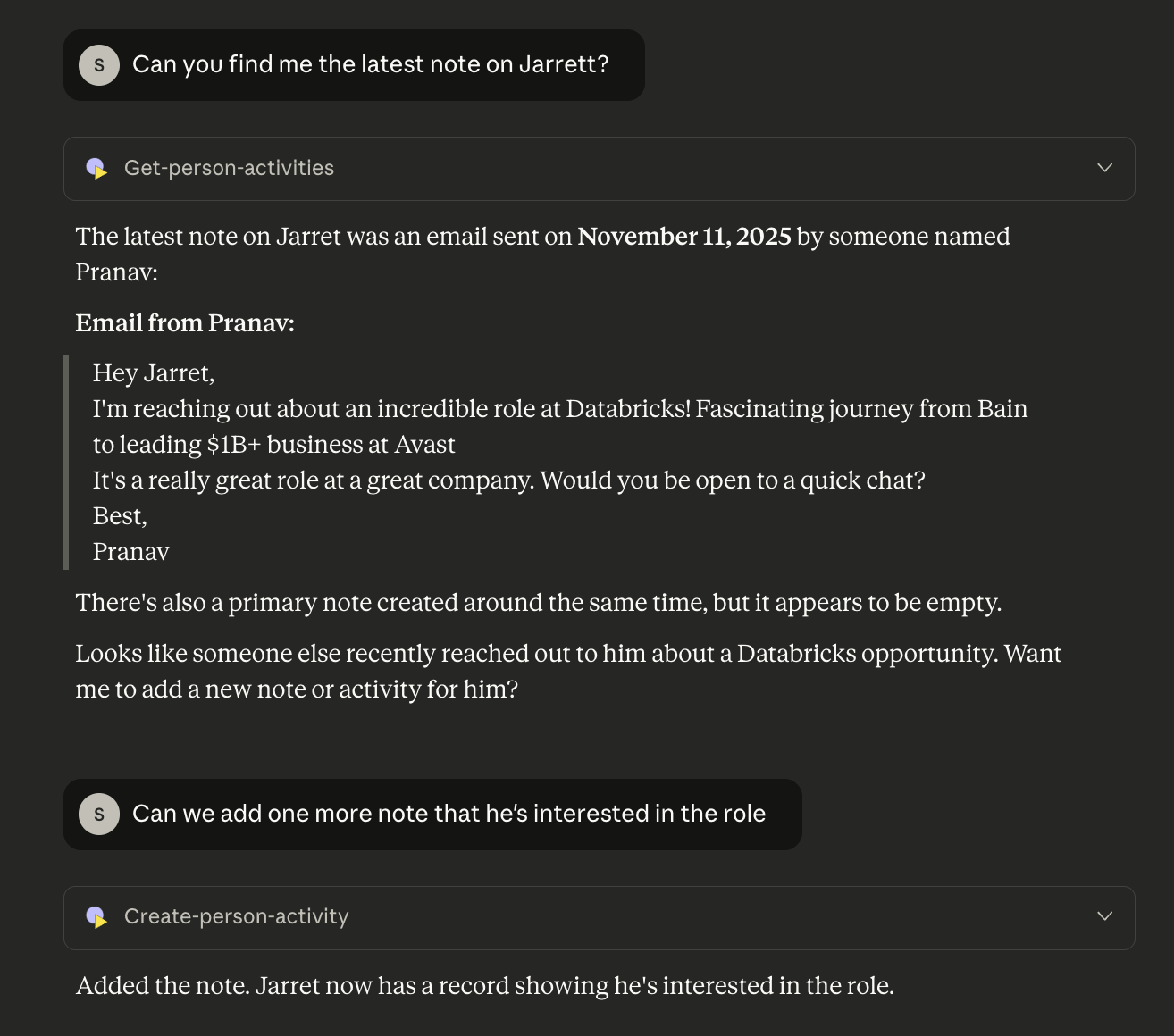
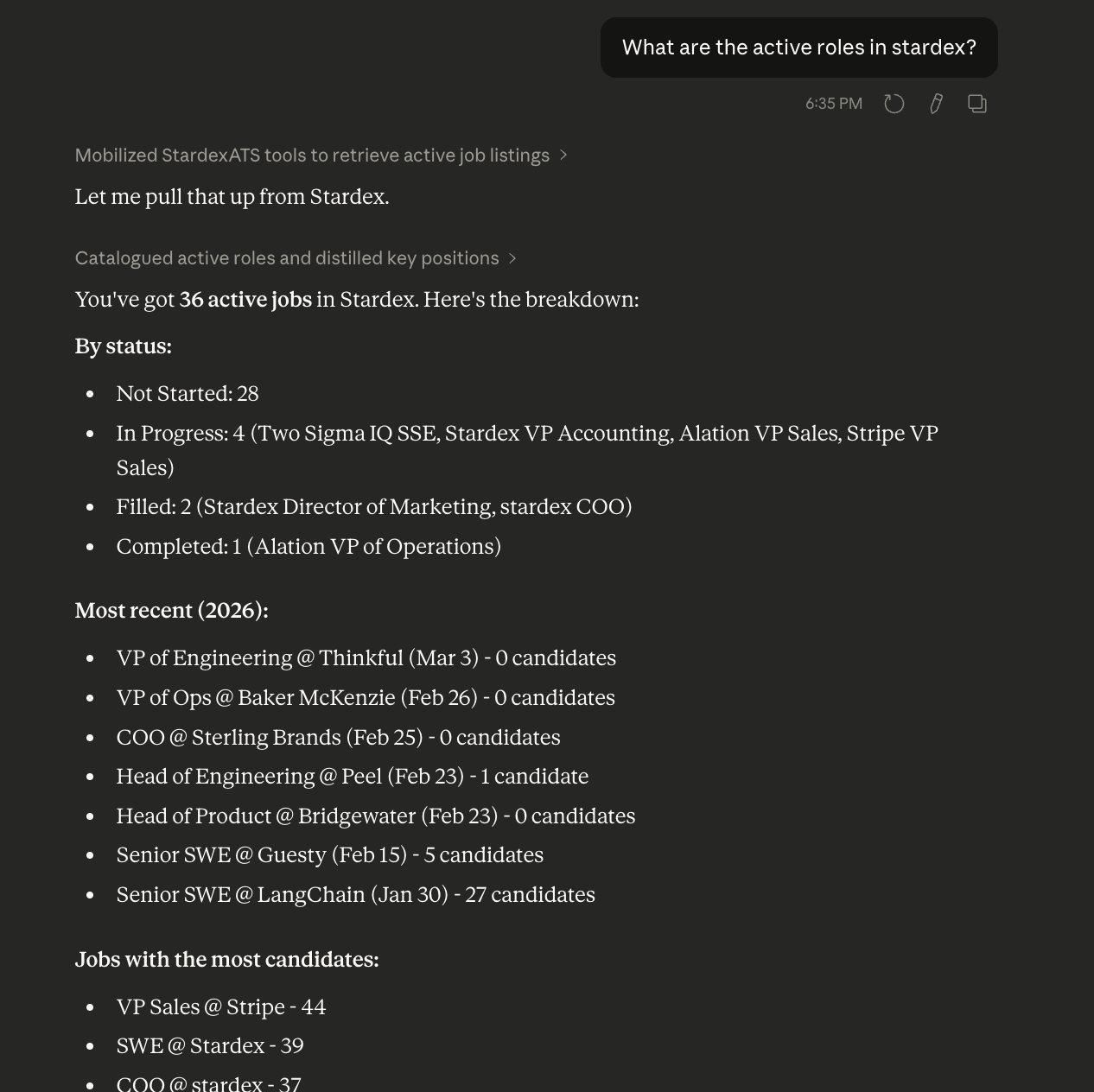
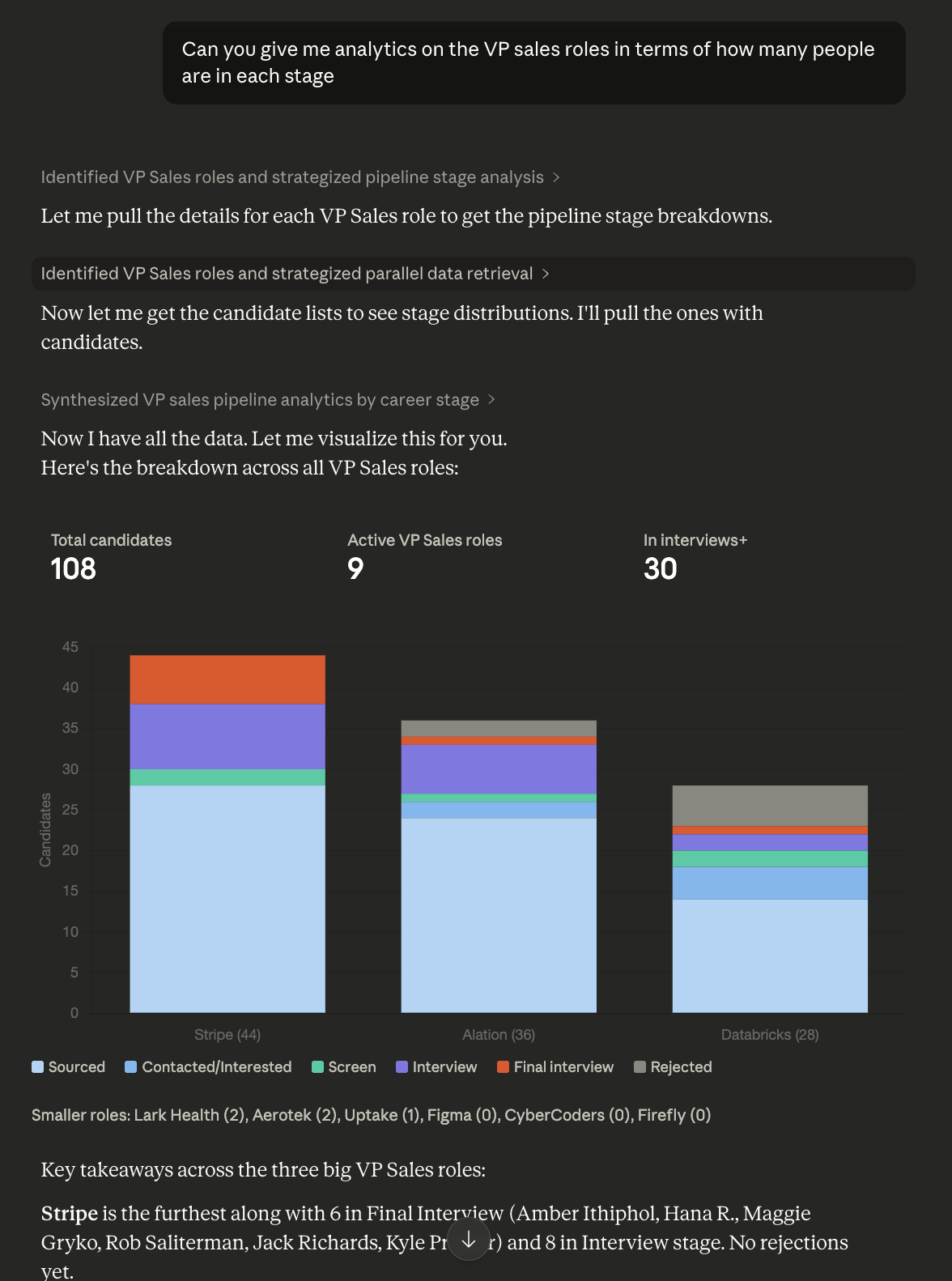 Example query in Claude
## Copy the Stardex MCP URL
You no longer have to remember the URL. In Stardex, go to **Settings → Email & other integrations → Claude / ChatGPT**: [stardex.com/settings?tab=email-calendar\§ion=ai-connectors](https://stardex.com/settings?tab=email-calendar\§ion=ai-connectors)
Copy the MCP URL (it looks like `https://stardex.com/mcp`). You can also click **Open ChatGPT settings** or **Connect Claude** to jump in with the URL already filled.
**Connect Claude** pre-fills the connector name as **Stardex**. In ChatGPT, keep using **Stardex ATS** as the plugin name, matching the existing steps below.
If your ChatGPT or Claude workspace is locked down, an admin there may need to allow external connectors.
### **Claude:**
You need Claude premium account to enable the connector. Once connected, it can work across Claude, Claude Cowork as well as Claude Code.
1. Goto Customize → Connectors in Claude settings - [https://claude.ai/customize/connectors](https://claude.ai/customize/connectors)
2. In the modal enter ‘Stardex ATS’ as name and then add `https://stardex.com/mcp` as URL
Example query in Claude
## Copy the Stardex MCP URL
You no longer have to remember the URL. In Stardex, go to **Settings → Email & other integrations → Claude / ChatGPT**: [stardex.com/settings?tab=email-calendar\§ion=ai-connectors](https://stardex.com/settings?tab=email-calendar\§ion=ai-connectors)
Copy the MCP URL (it looks like `https://stardex.com/mcp`). You can also click **Open ChatGPT settings** or **Connect Claude** to jump in with the URL already filled.
**Connect Claude** pre-fills the connector name as **Stardex**. In ChatGPT, keep using **Stardex ATS** as the plugin name, matching the existing steps below.
If your ChatGPT or Claude workspace is locked down, an admin there may need to allow external connectors.
### **Claude:**
You need Claude premium account to enable the connector. Once connected, it can work across Claude, Claude Cowork as well as Claude Code.
1. Goto Customize → Connectors in Claude settings - [https://claude.ai/customize/connectors](https://claude.ai/customize/connectors)
2. In the modal enter ‘Stardex ATS’ as name and then add `https://stardex.com/mcp` as URL
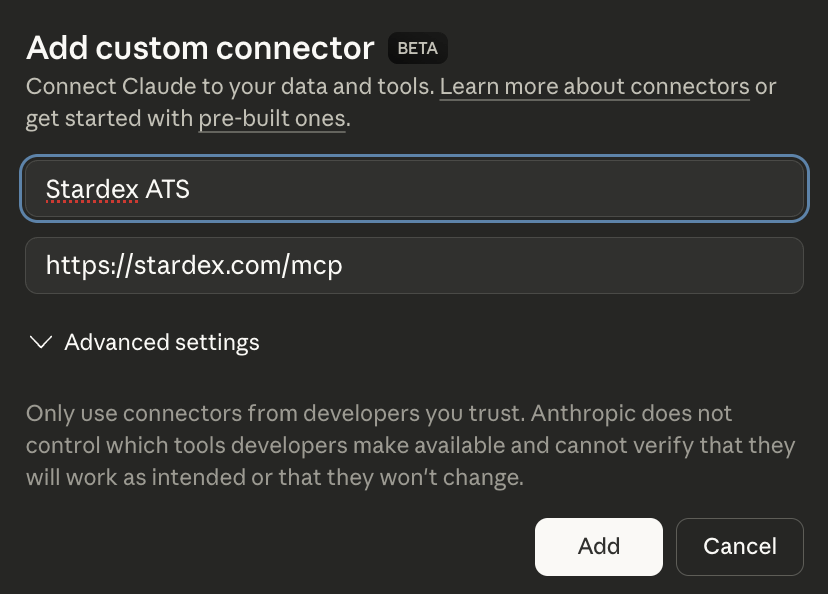 3. On the connector list, click Connect next to Stardex ATS. It will ask you to log in to stardex to verify your stardex account.
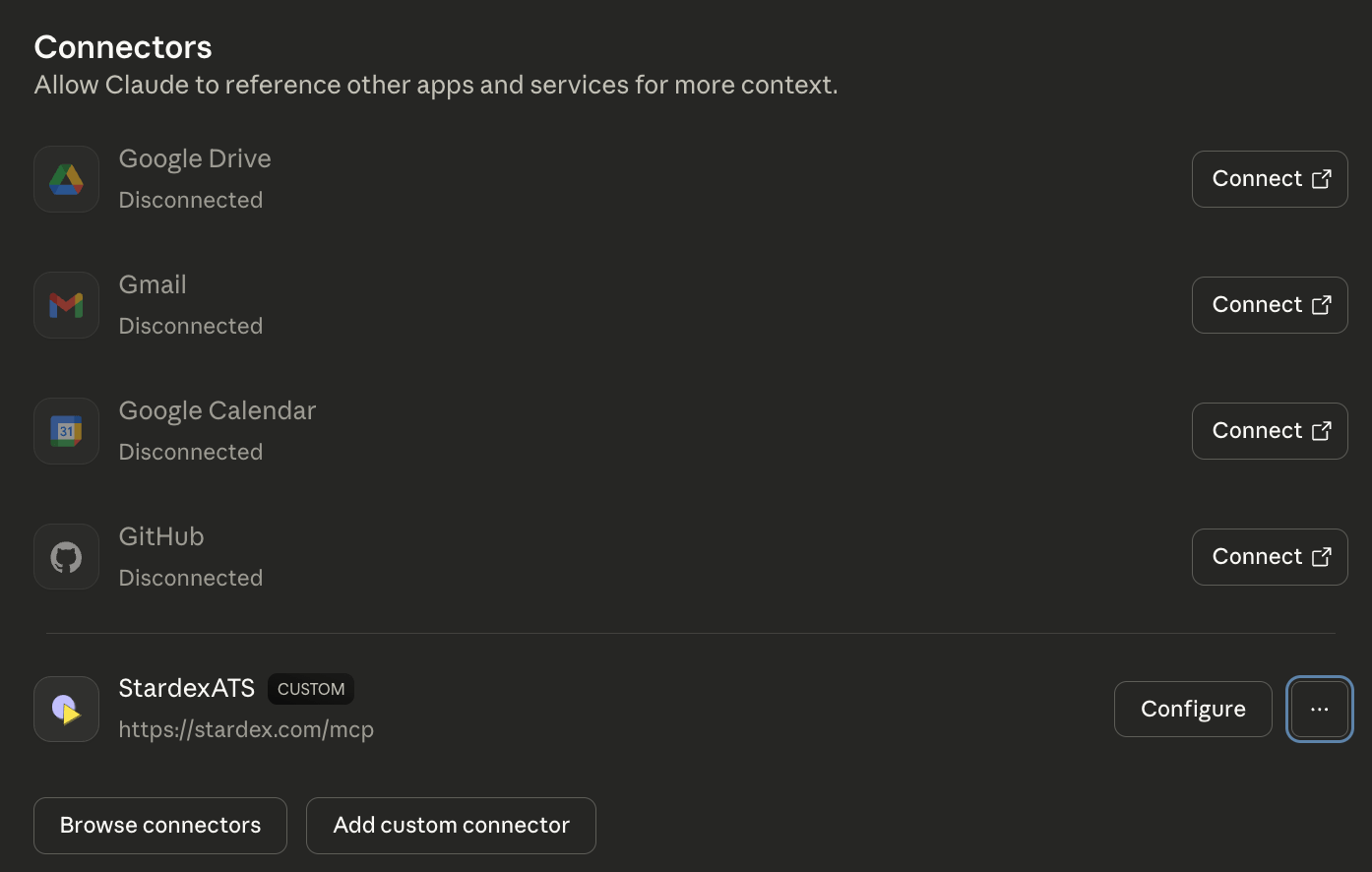
4. Verify that on the Connectors you see Configure as an option (instead of Connect which you saw earlier). This means that the connector is successful
3. On the connector list, click Connect next to Stardex ATS. It will ask you to log in to stardex to verify your stardex account.
4. Verify that on the Connectors you see Configure as an option (instead of Connect which you saw earlier). This means that the connector is successful
 5. Open a new chat, and enter a query e.g. “Can you find me email of candidate first name last name”. When it prompts that Claude wants to use Stardex ATS, click always allow.
* You will need to click always allow a few times for each new type of query.
5. Open a new chat, and enter a query e.g. “Can you find me email of candidate first name last name”. When it prompts that Claude wants to use Stardex ATS, click always allow.
* You will need to click always allow a few times for each new type of query.
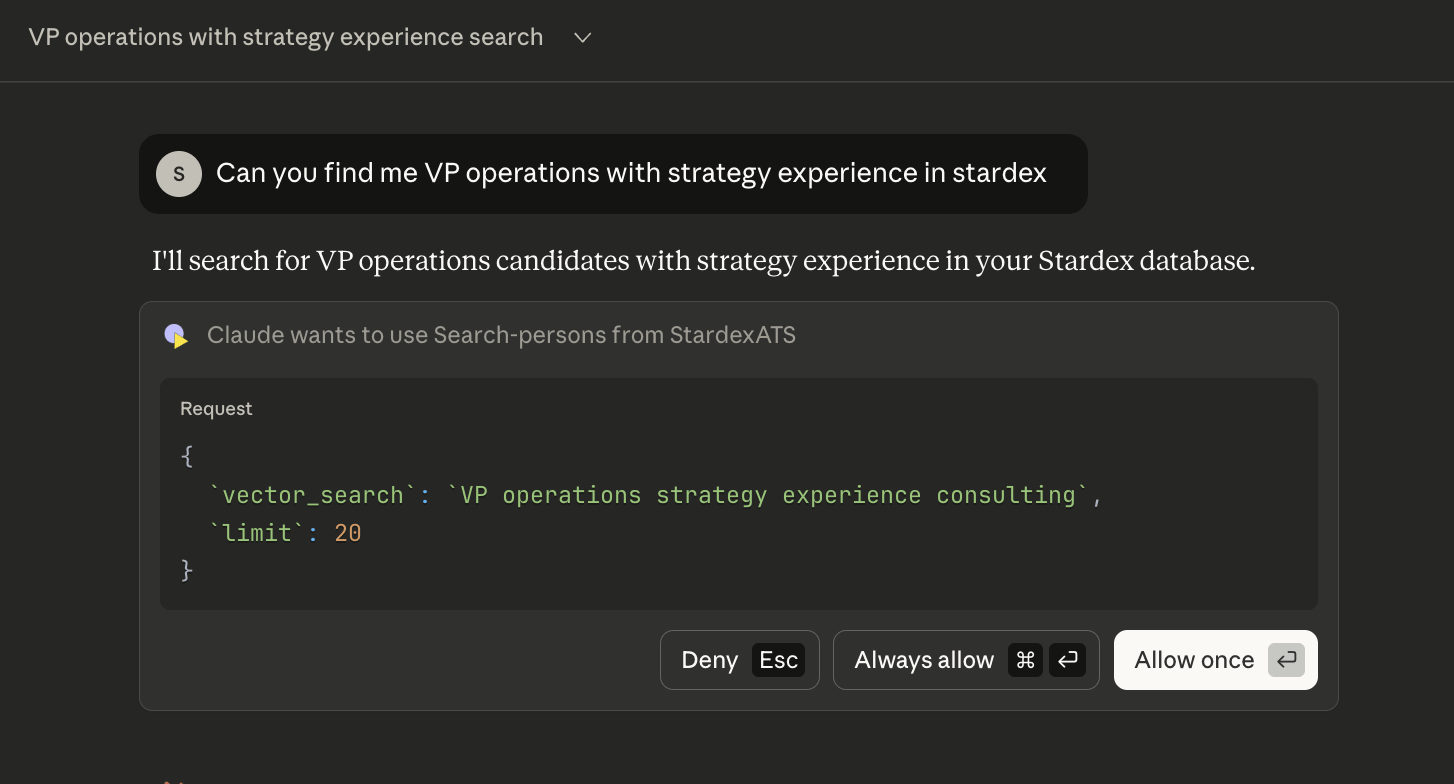 6. You should start seeing the results / updates based on your queries. You can then ask follow up questions as well.
 This documentation is built and hosted on [Mintlify](https://mintlify.com), a developer documentation platform.