> ## Documentation Index
> Fetch the complete documentation index at: https://docs.stardex.com/llms.txt
> Use this file to discover all available pages before exploring further.
# ChatGPT connector
> Set up the Stardex MCP app in ChatGPT for Business workspaces or individual Pro accounts.
You can talk to your stardex data in ChatGPT / Claude / your favorite LLM now! This is experimental, and won’t support all activities that you can do but we will keep adding more support over time. We would love your feedback!
Queries it can support:
* Can you find me xyz type of candidates?
* Show me a list of candidates in vp marketing at Tekto job
* Add a note to candidate jackie murao that she’s not interested in this job
* Find the latest email we have with jackie murao
* How many people are in my database with python experience
Connectors don’t read any other data from your LLM app. It only looks at information that it’s provided in the chat.
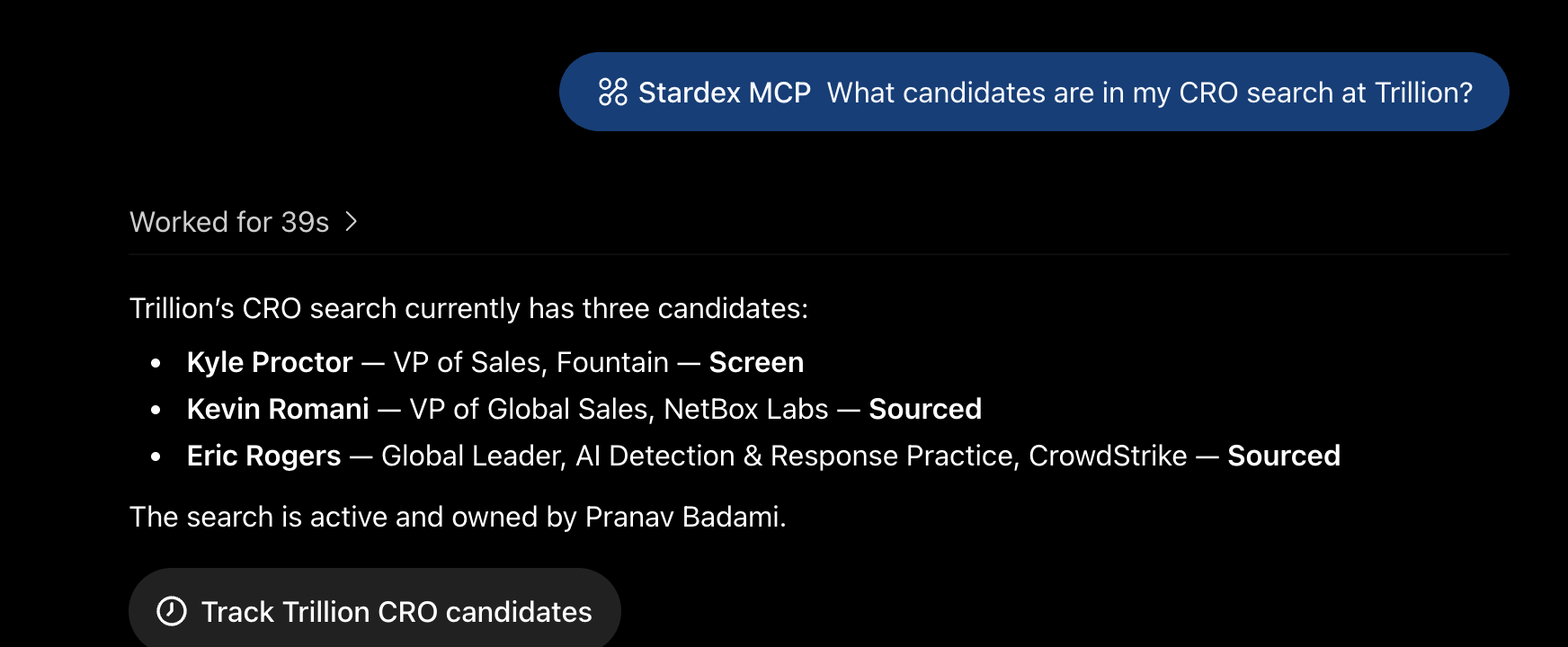
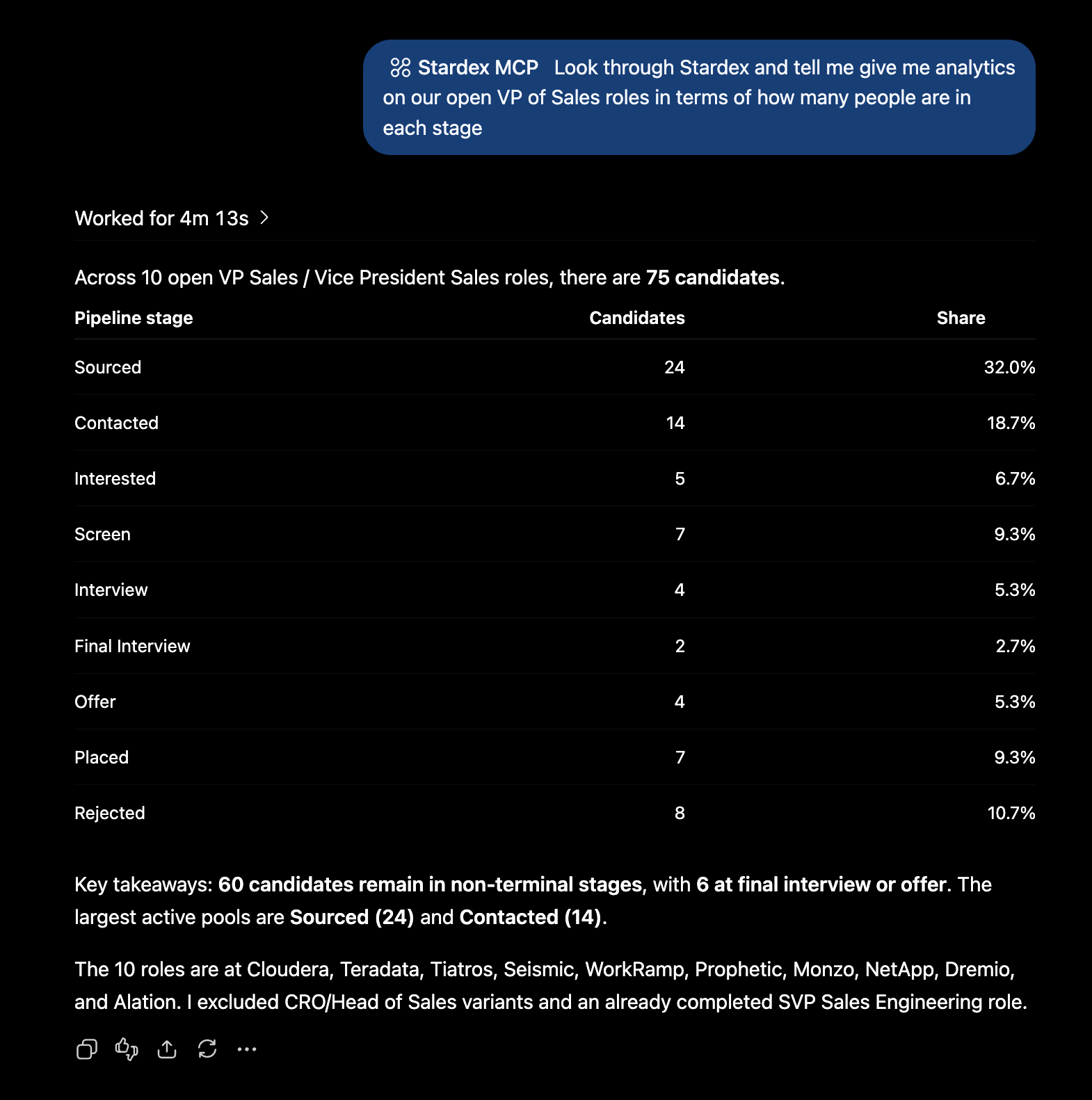 Sample query in ChatGPT!
The way you connect, depends on your account type.
1. If you are on a ChatGPT business plan, have an admin first configure with the guide below. They can publish the app and then let you use it.
2. If you are on a Pro plan than follow the steps below.
**Using a ChatGPT Business workspace?** Only workspace Admins/Owners can enable Developer Mode and add a custom MCP app. An admin should follow the steps below, then publish **Stardex ATS** to the workspace so other members can use it.
## Admin Guide for ChatGPT Business account owners
Note: This is for admins on ChatGPT Business accounts ONLY! If you are a non-admin user looking to connect, follow the “Non-admin user guide” below. This will walk you through adding Stardex as a ChatGPT connector for your team.
1. Goto [https://chatgpt.com/admin/apps?tab=workspace](https://chatgpt.com/admin/apps?tab=workspace) and click Create
2. Enter Stardex MCP and use Connection URL `https://stardex.com/mcp` . Select the options below:
Sample query in ChatGPT!
The way you connect, depends on your account type.
1. If you are on a ChatGPT business plan, have an admin first configure with the guide below. They can publish the app and then let you use it.
2. If you are on a Pro plan than follow the steps below.
**Using a ChatGPT Business workspace?** Only workspace Admins/Owners can enable Developer Mode and add a custom MCP app. An admin should follow the steps below, then publish **Stardex ATS** to the workspace so other members can use it.
## Admin Guide for ChatGPT Business account owners
Note: This is for admins on ChatGPT Business accounts ONLY! If you are a non-admin user looking to connect, follow the “Non-admin user guide” below. This will walk you through adding Stardex as a ChatGPT connector for your team.
1. Goto [https://chatgpt.com/admin/apps?tab=workspace](https://chatgpt.com/admin/apps?tab=workspace) and click Create
2. Enter Stardex MCP and use Connection URL `https://stardex.com/mcp` . Select the options below:
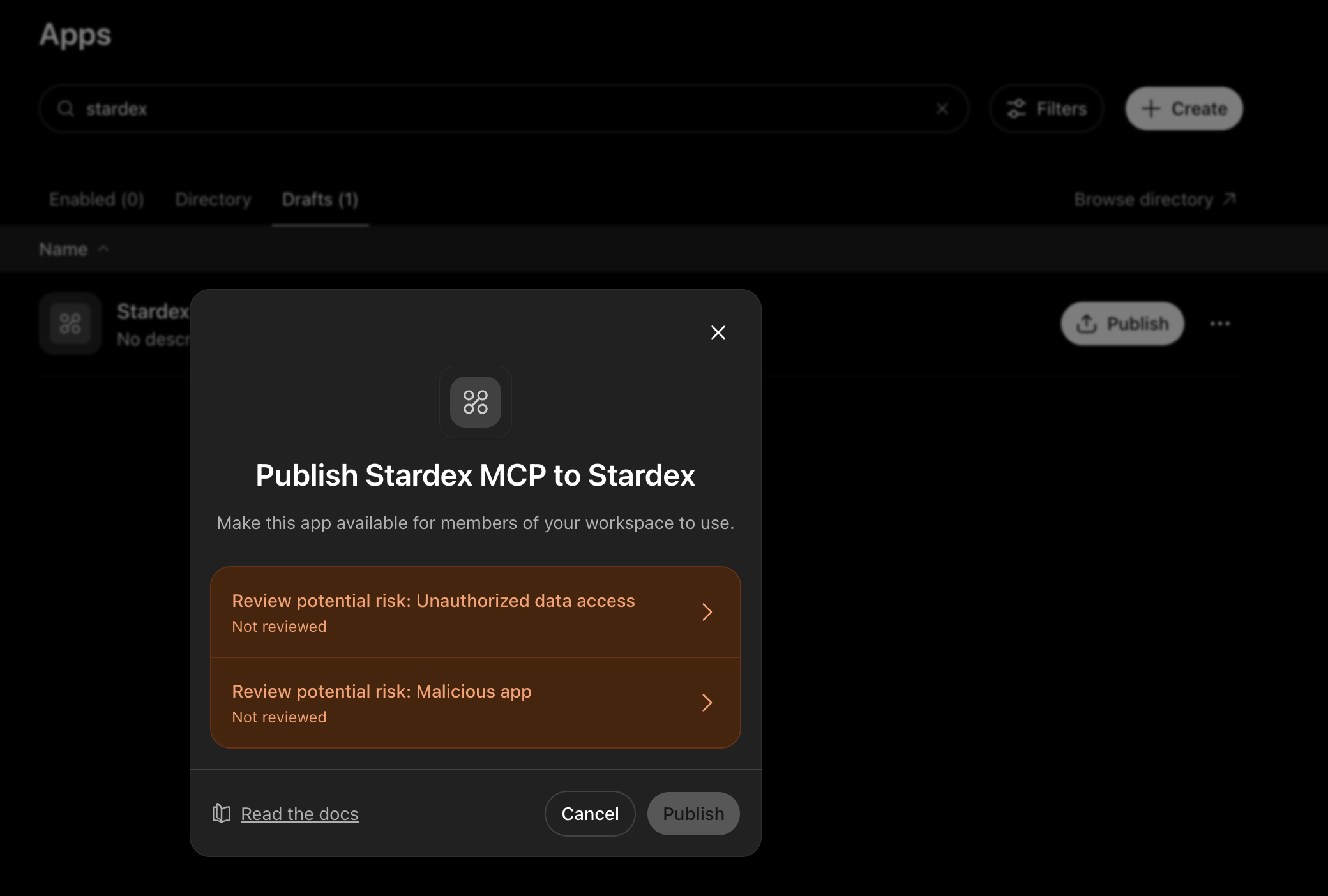
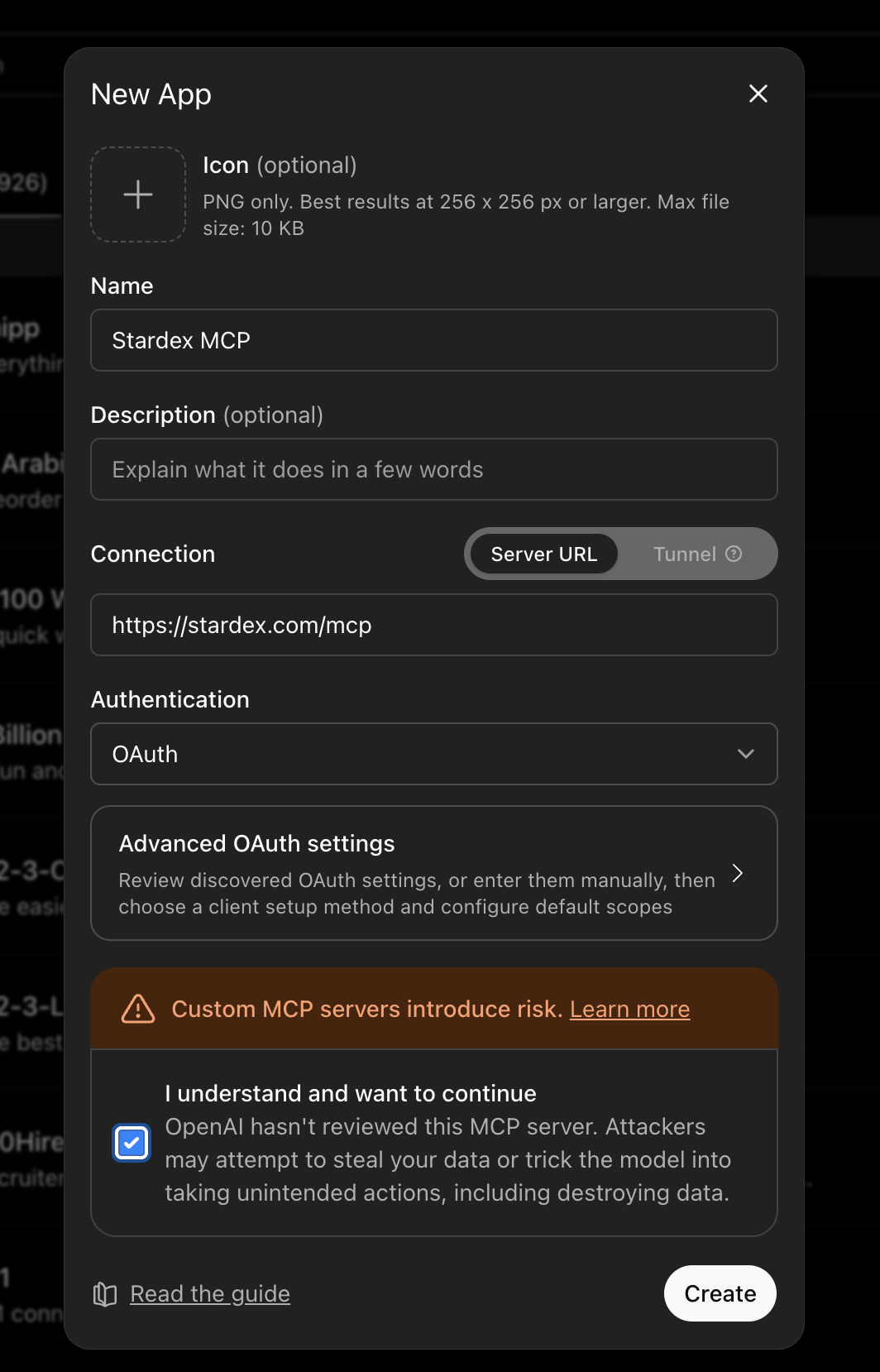 3. Once created, click Publish to publish this to your team.
 4. Click into the “Review potential risk” sections and select the checkboxes:
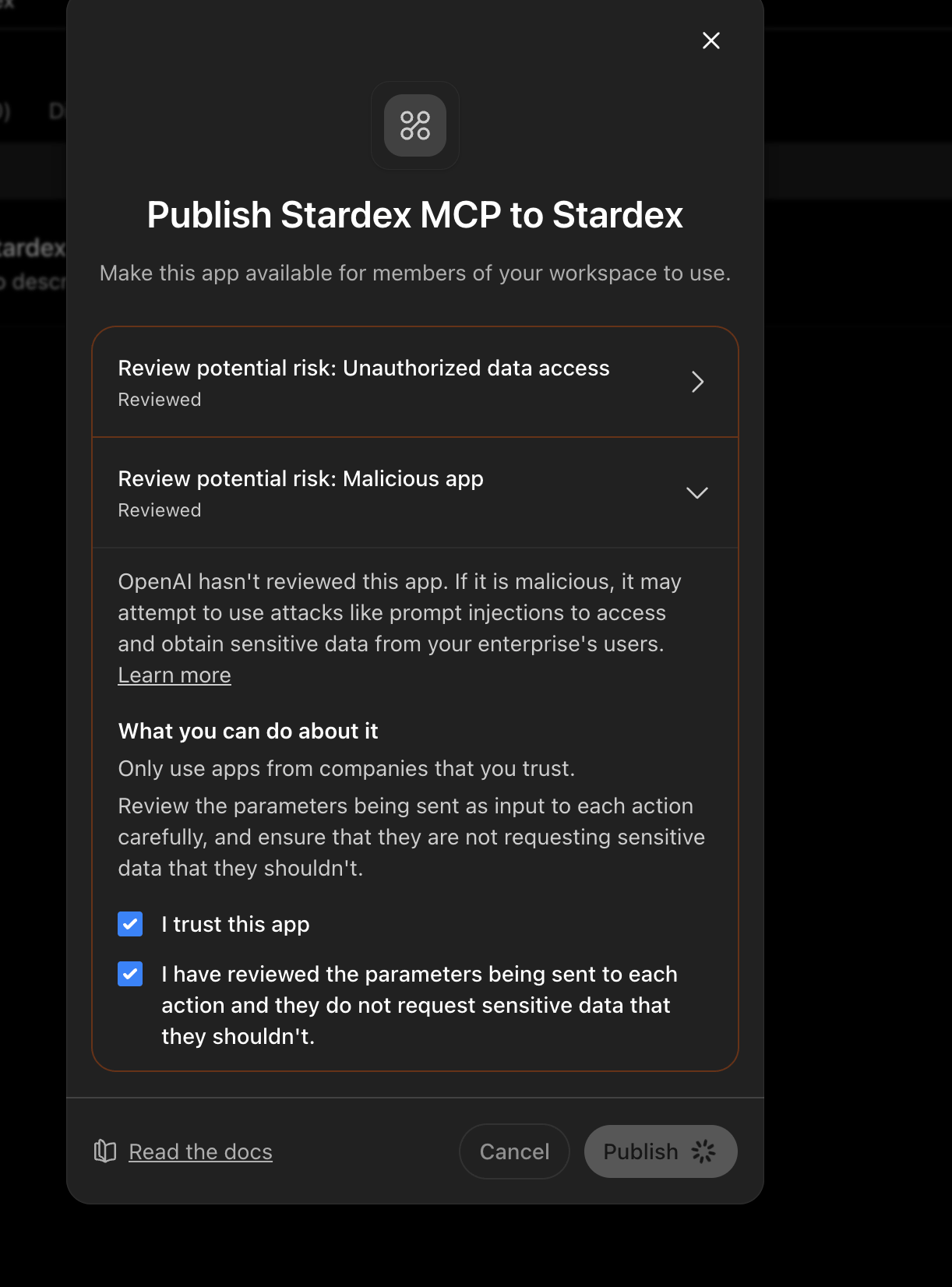 5. Click Publish! The connector is now published for your team. Users can now connect ChatGPT to Stardex using the “Non-admin User Guide” section below ⬇️
## Non-admin User Guide for ChatGPT Business account users
1. Go here [https://chatgpt.com/plugins](https://chatgpt.com/plugins) and search for Stardex. (Note: your admin needs to have followed the instructions above)
5. Click Publish! The connector is now published for your team. Users can now connect ChatGPT to Stardex using the “Non-admin User Guide” section below ⬇️
## Non-admin User Guide for ChatGPT Business account users
1. Go here [https://chatgpt.com/plugins](https://chatgpt.com/plugins) and search for Stardex. (Note: your admin needs to have followed the instructions above)
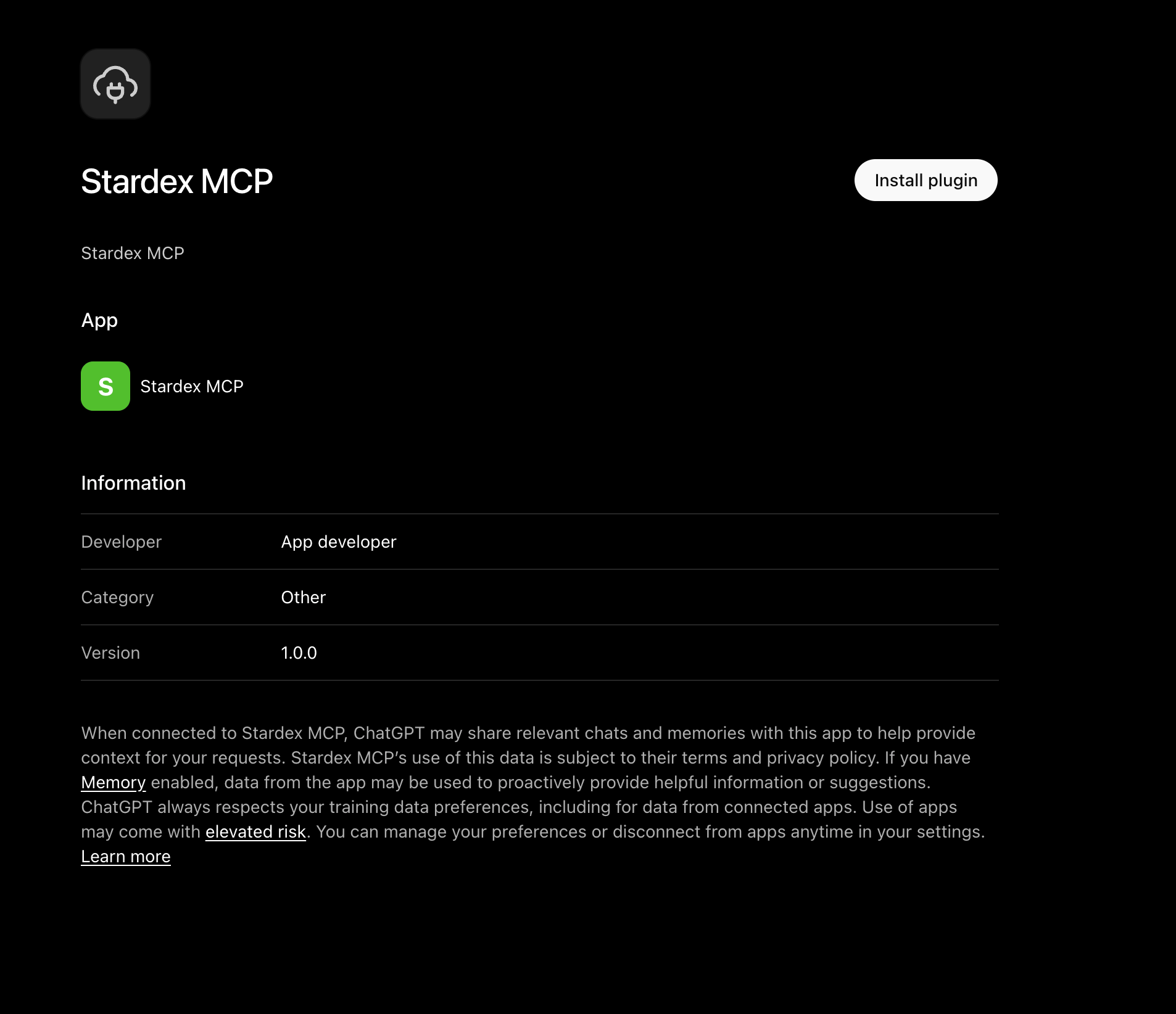
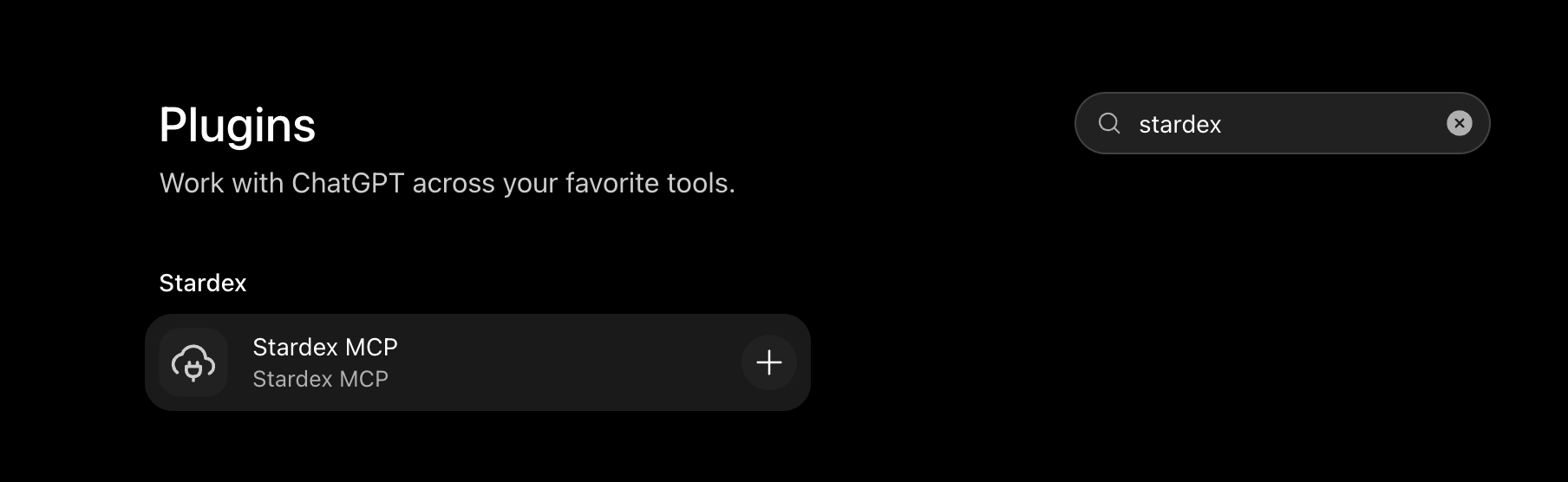 2. Click “+” and then Install Plugin
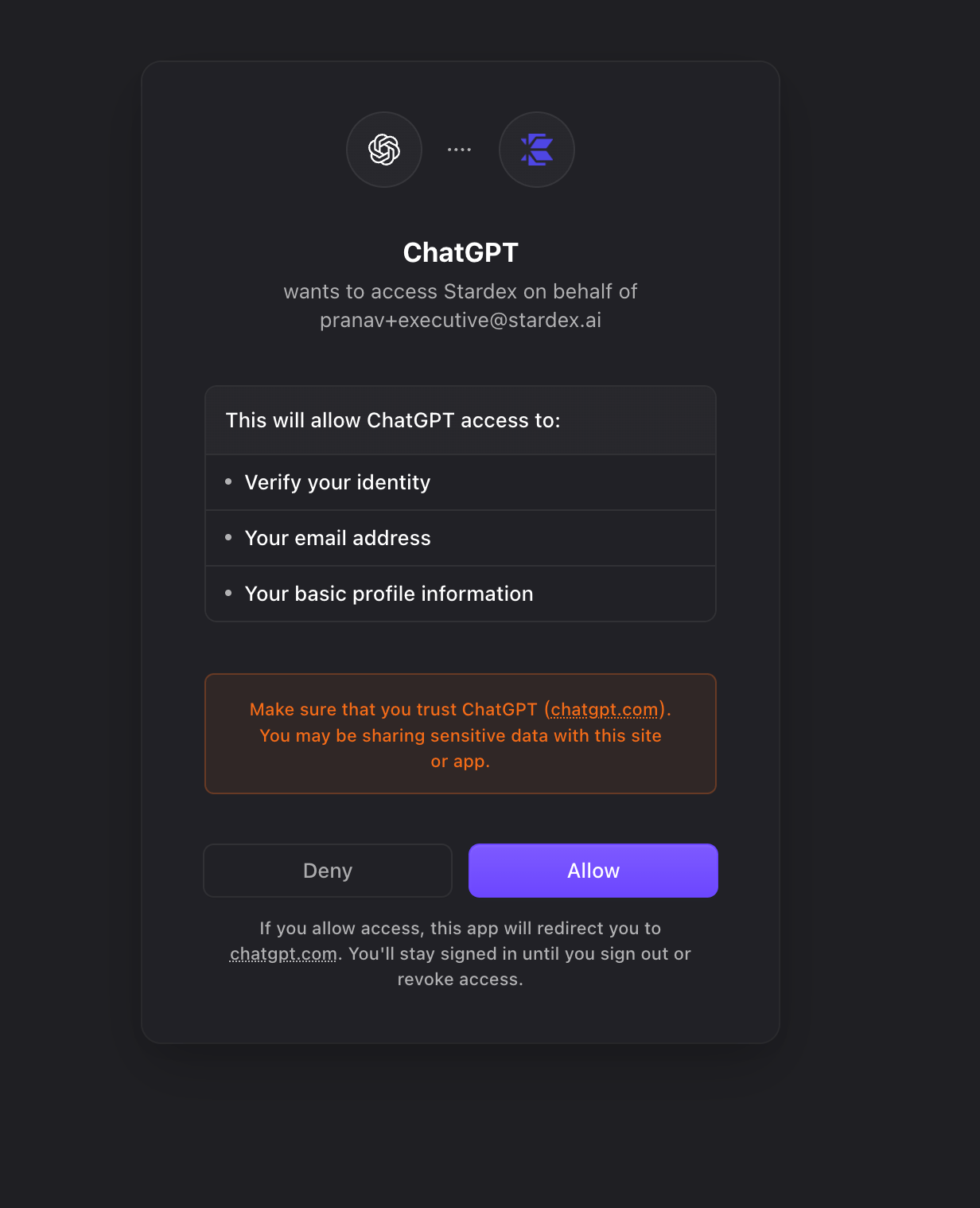
 3. This will redirect you to authenticate ChatGPT with Stardex. Click allow:
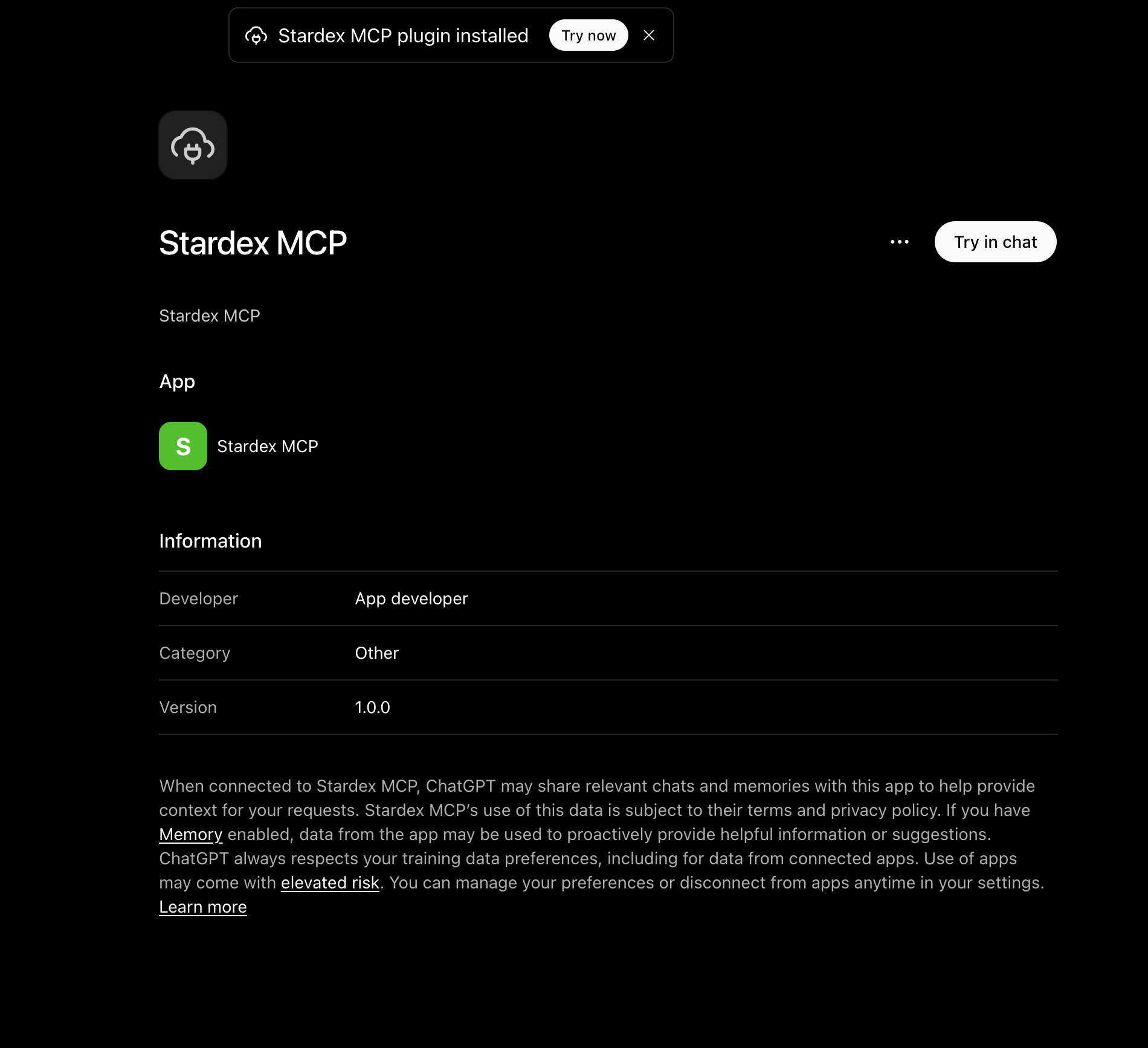
 4. Then you’ll be redirected back into ChatGPT and see the plugin installed. Click the “Try now” button at the top.
 5. Try out a simple chat question like below:
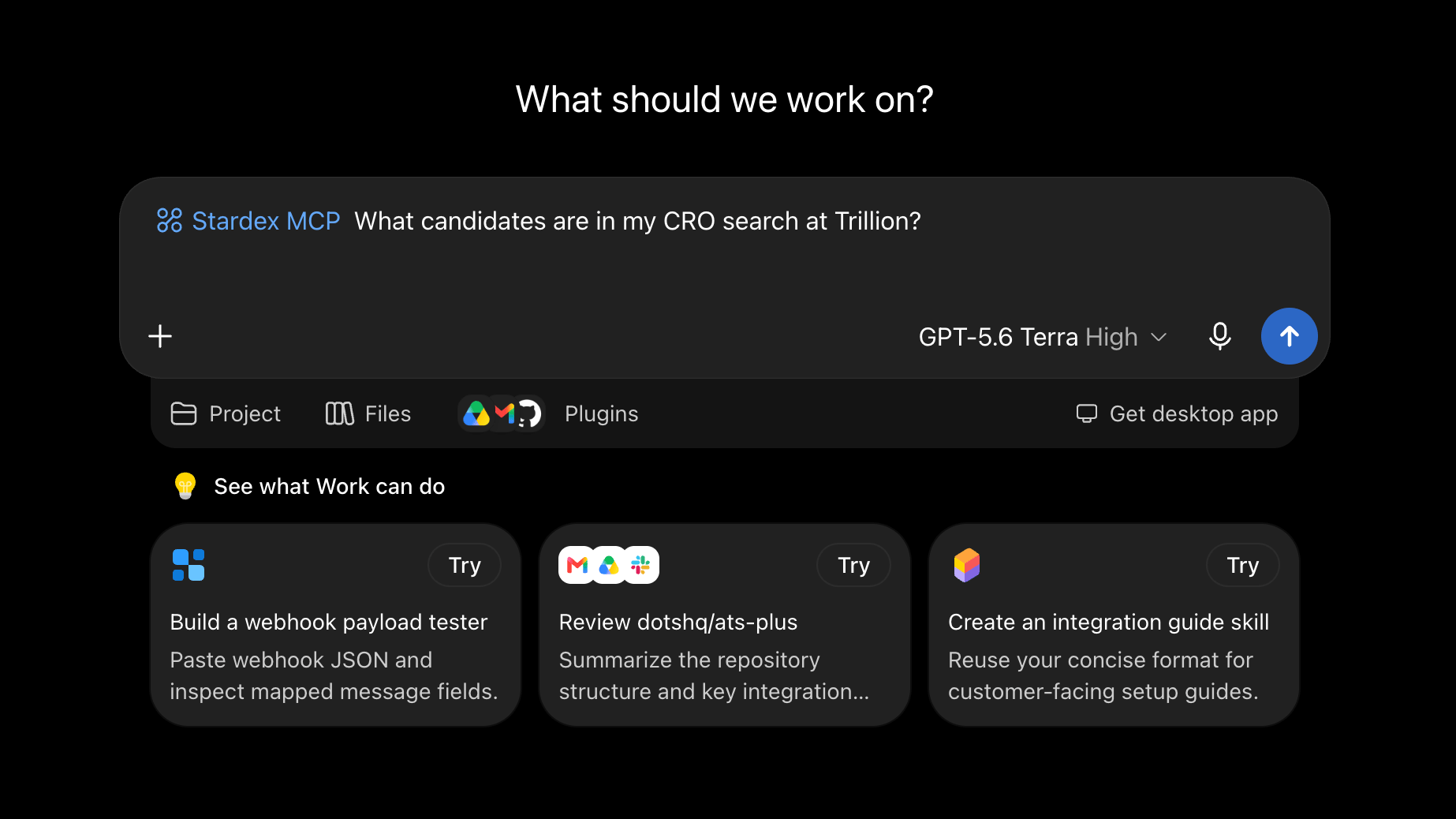 6. If you see your data coming back, you’re all set!
 **Using a ChatGPT Individual Pro Plan?** Follow the guide below./
## User Guide for Individual Pro Plan users
In Stardex, go to **Settings → Email & other integrations → Claude / ChatGPT**: [stardex.com/settings?tab=email-calendar\§ion=ai-connectors](https://stardex.com/settings?tab=email-calendar\§ion=ai-connectors)
Copy the MCP URL (it looks like `https://stardex.com/mcp`). You can also click **Open ChatGPT settings** or **Connect Claude** to jump in with the URL already filled.
**Using a ChatGPT Individual Pro Plan?** Follow the guide below./
## User Guide for Individual Pro Plan users
In Stardex, go to **Settings → Email & other integrations → Claude / ChatGPT**: [stardex.com/settings?tab=email-calendar\§ion=ai-connectors](https://stardex.com/settings?tab=email-calendar\§ion=ai-connectors)
Copy the MCP URL (it looks like `https://stardex.com/mcp`). You can also click **Open ChatGPT settings** or **Connect Claude** to jump in with the URL already filled.
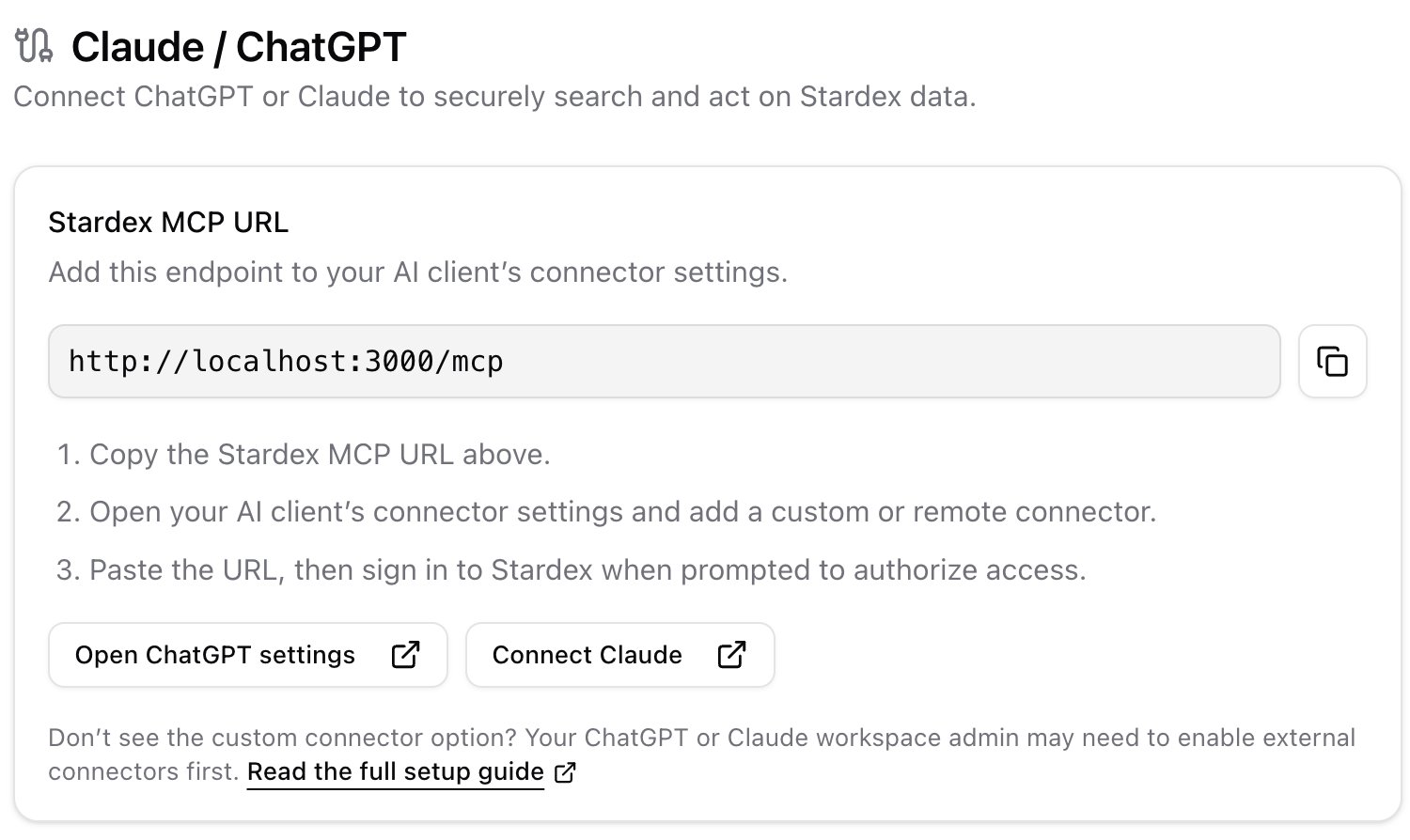 Claude / ChatGPT settings card with MCP URL
In ChatGPT, keep using **Stardex ATS** as the plugin name, matching the existing steps below.
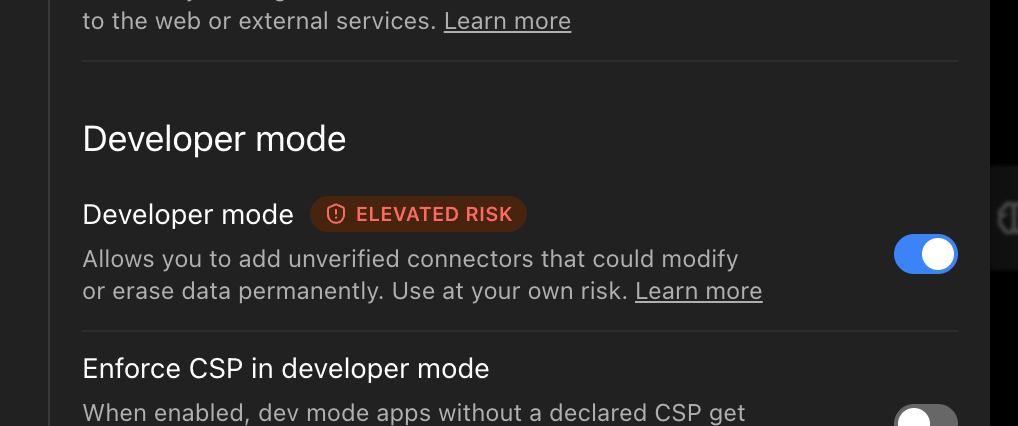
1. You will need to enable Developer mode first in ChatGPT. You can do that through Settings → Security and Login → Scroll to Developer mode and check Developer mode. [https://chatgpt.com/#settings/Security?section=developer-mode](https://chatgpt.com/#settings/Security?section=developer-mode)
Claude / ChatGPT settings card with MCP URL
In ChatGPT, keep using **Stardex ATS** as the plugin name, matching the existing steps below.
1. You will need to enable Developer mode first in ChatGPT. You can do that through Settings → Security and Login → Scroll to Developer mode and check Developer mode. [https://chatgpt.com/#settings/Security?section=developer-mode](https://chatgpt.com/#settings/Security?section=developer-mode)
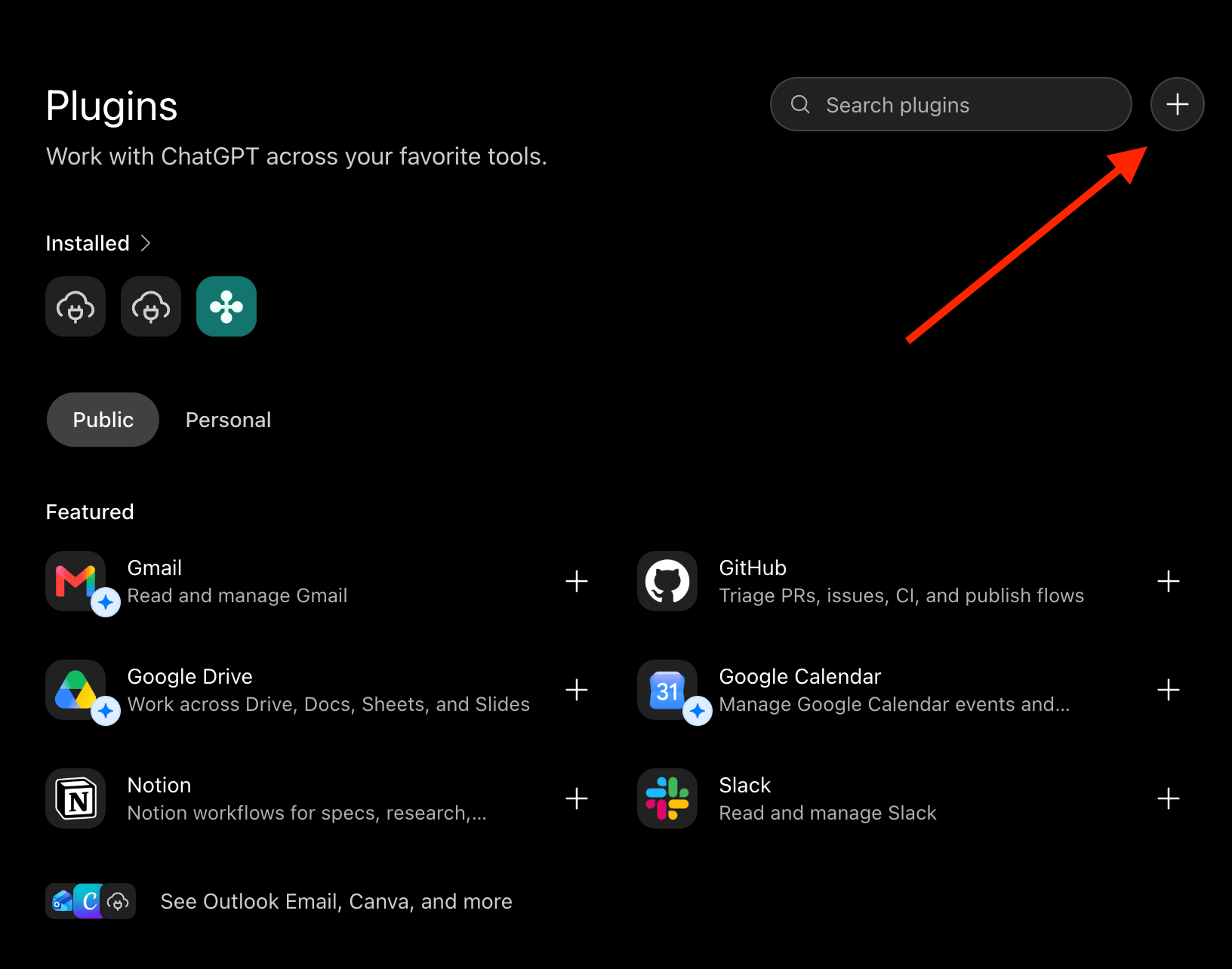
 2. Now go back to the Plugins tab and click on the + icon in the top right. [https://chatgpt.com/plugins#settings/Connectors?create-connector=true\&redirectAfter=%2Fplugins](https://chatgpt.com/plugins#settings/Connectors?create-connector=true\&redirectAfter=%2Fplugins)
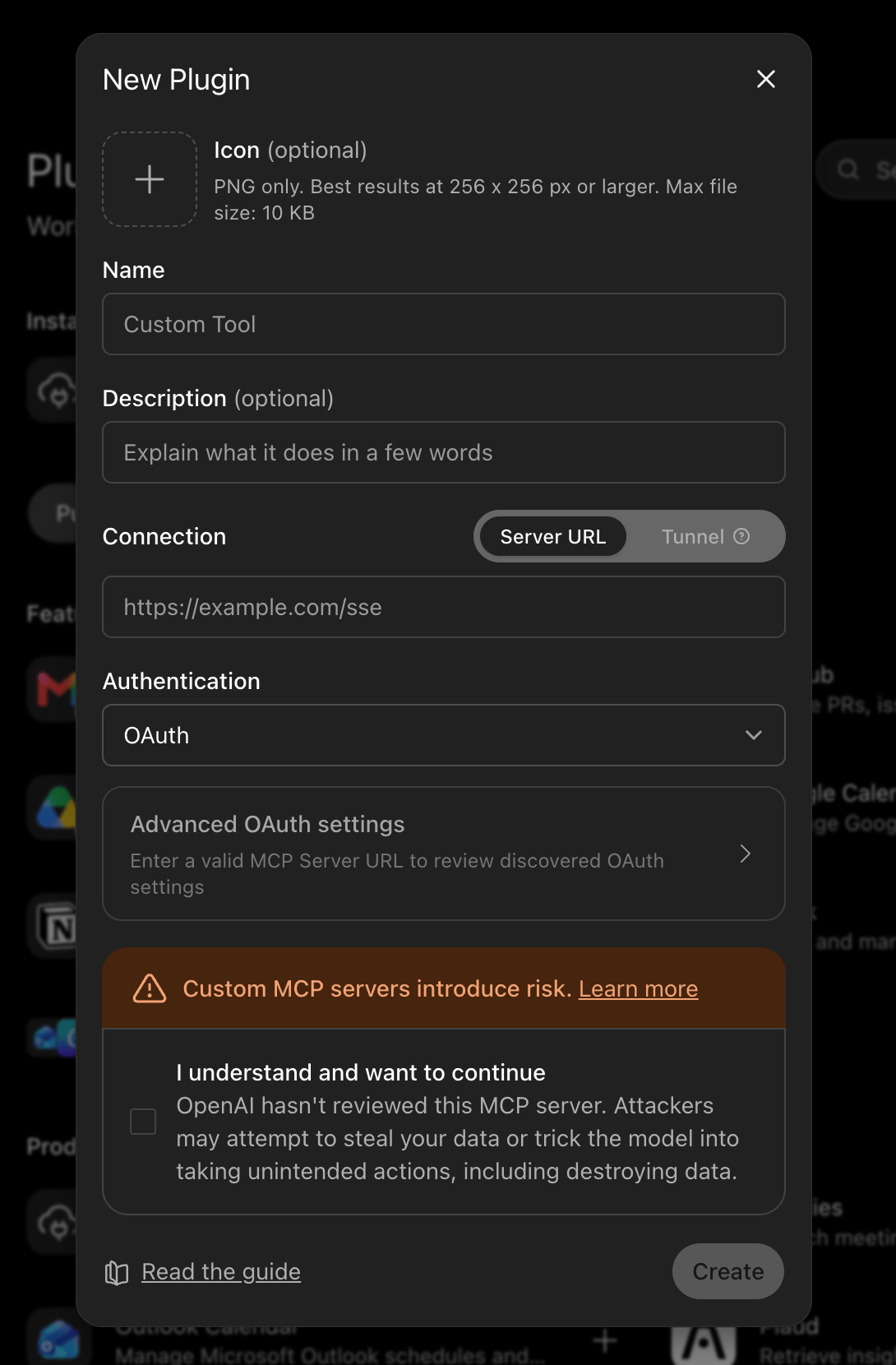
 3. In the New Plugin section, ‘Stardex ATS’ as name and then add `https://stardex.com/mcp` as URL
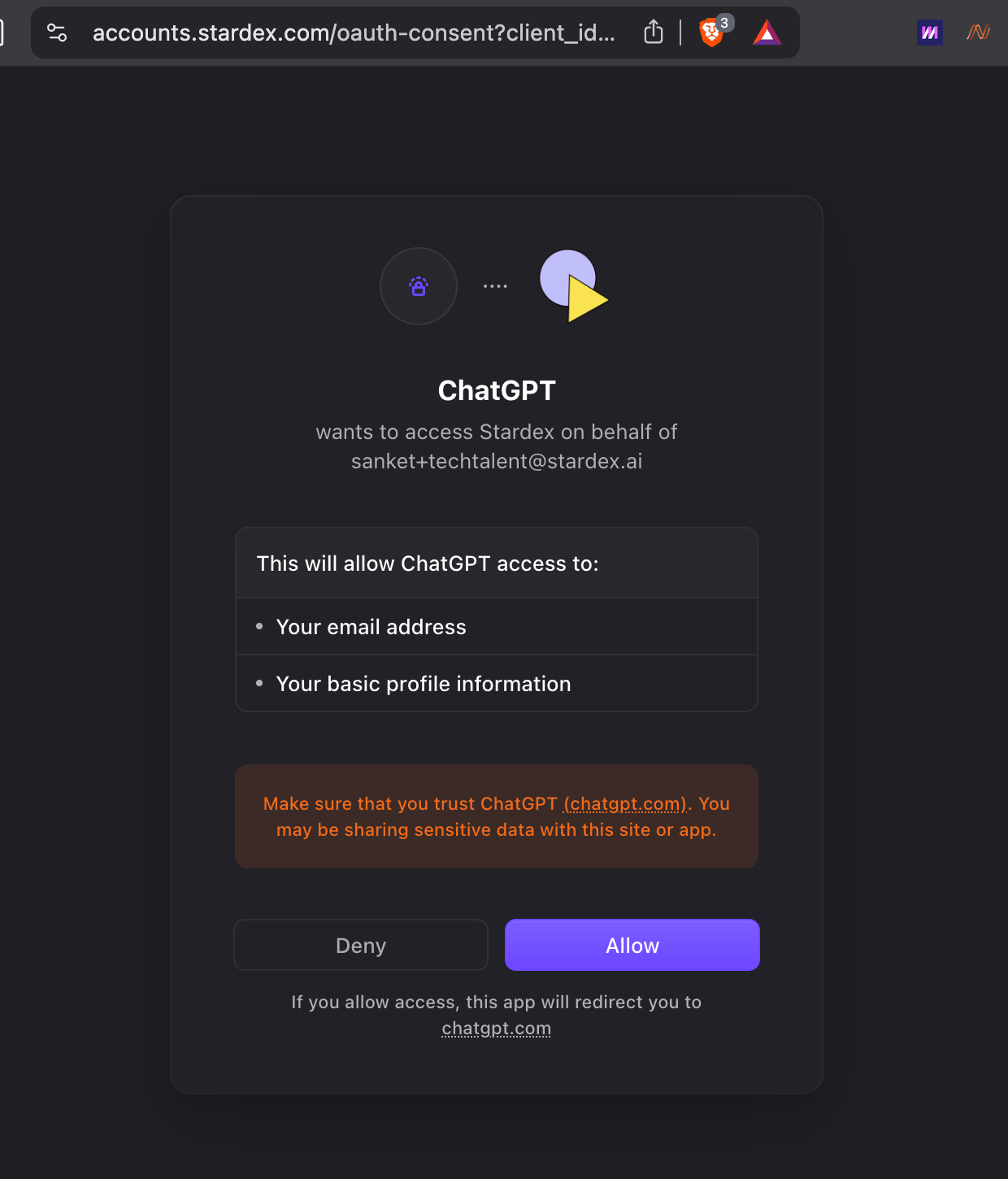
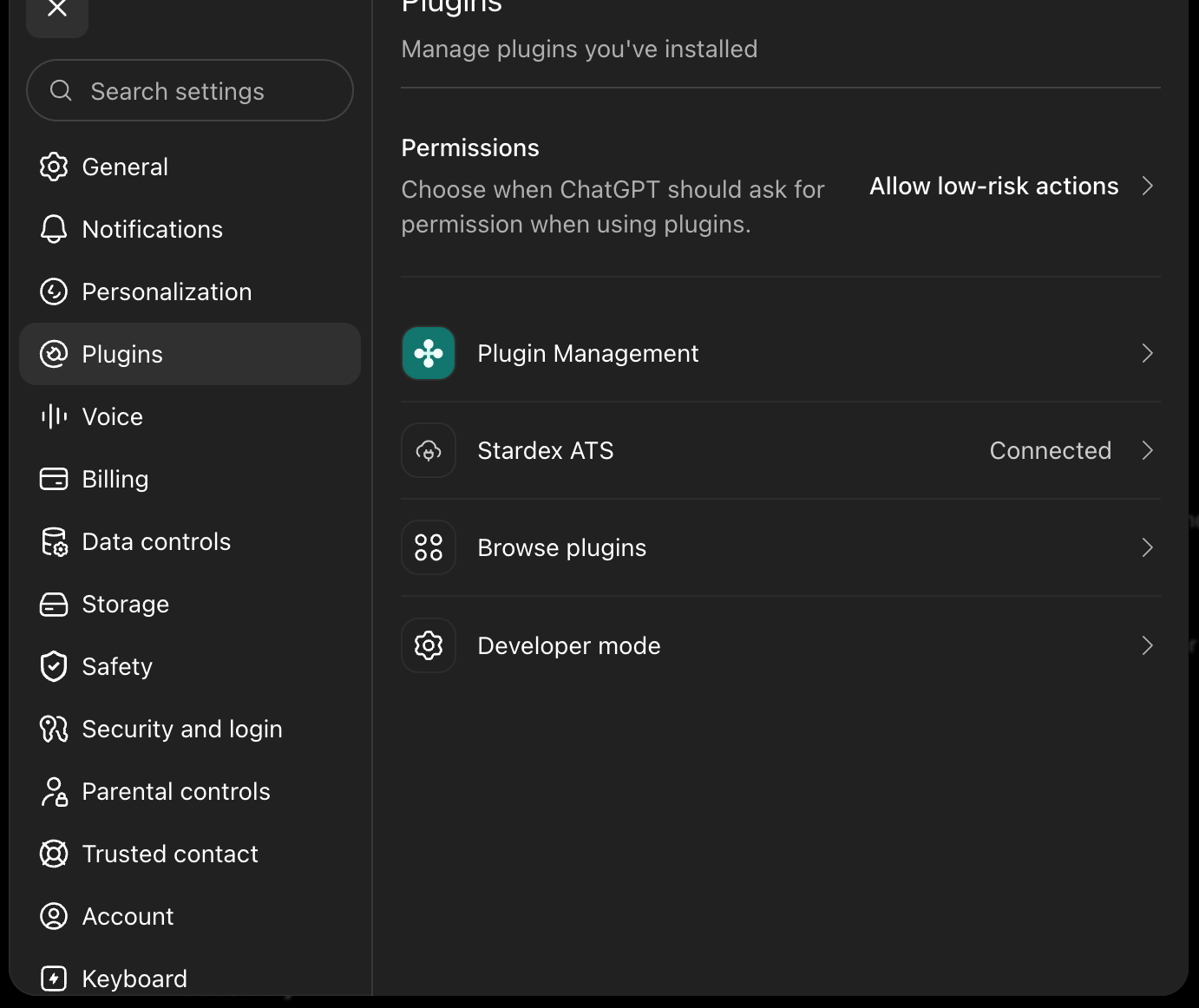
 4. You will be forwarded to [accounts.stardex.com](http://accounts.stardex.com) to authorize your stardex account. Click Allow. You should now see it in your list of enabled apps & connectors
 5. Try out a simple chat question like below:
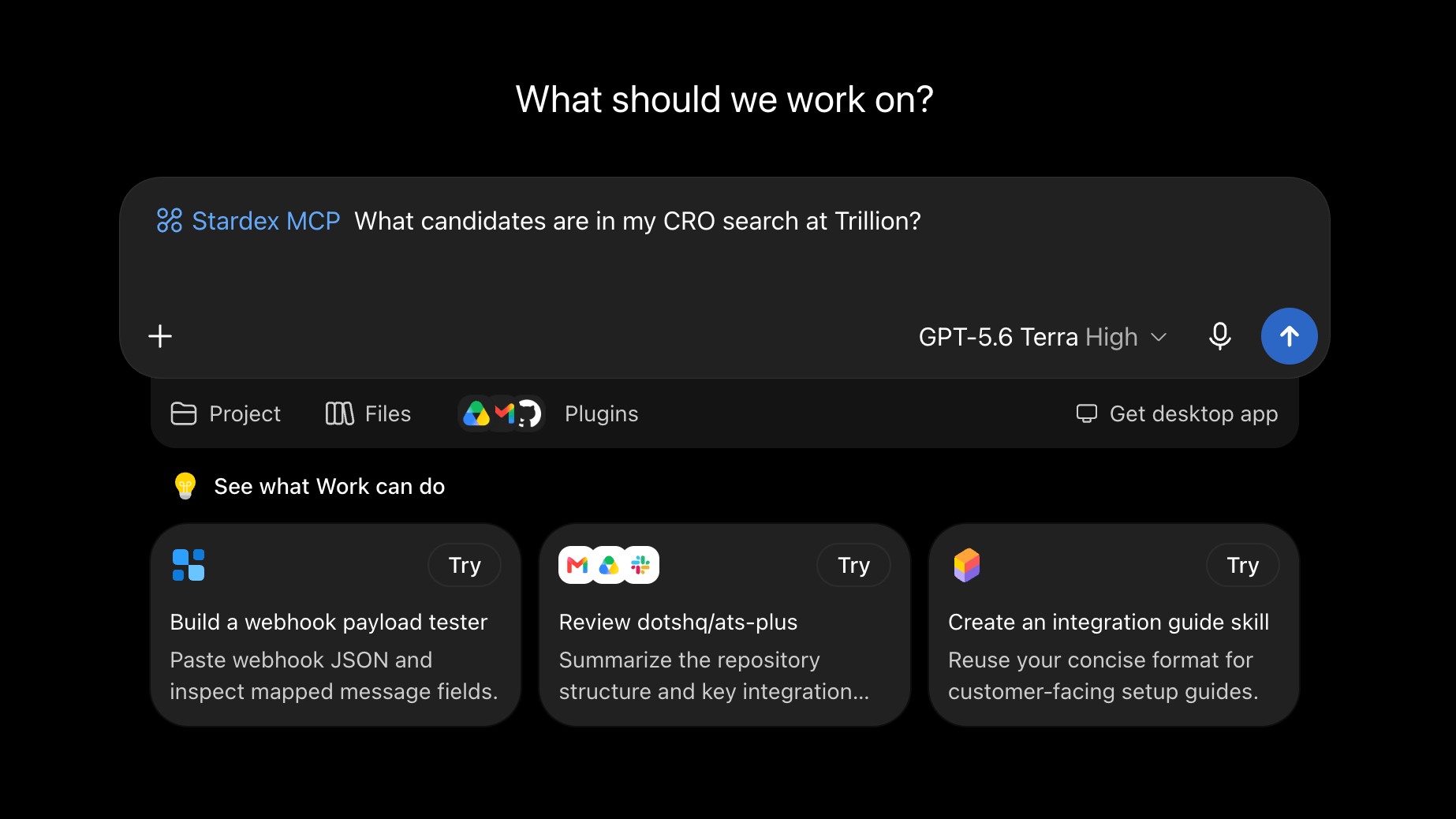 6. If you see your data coming back, you’re all set!
This documentation is built and hosted on [Mintlify](https://mintlify.com), a developer documentation platform.
6. If you see your data coming back, you’re all set!
This documentation is built and hosted on [Mintlify](https://mintlify.com), a developer documentation platform.