> ## Documentation Index
> Fetch the complete documentation index at: https://docs.stardex.com/llms.txt
> Use this file to discover all available pages before exploring further.
# AI Activity Updates
> Use activity notes to suggest profile updates, tag custom fields, extract compensation, and generate tasks with AI.
When you save an activity - a call note, meeting recap, or update from the Chrome extension — Stardex runs AI in the background to extract useful information. Depending on your settings, it can update custom fields, record compensation data, and create follow-up tasks automatically.
 ***
## What happens when you save an activity
As soon as an activity is saved, Stardex kicks off two independent AI pipelines in the background:
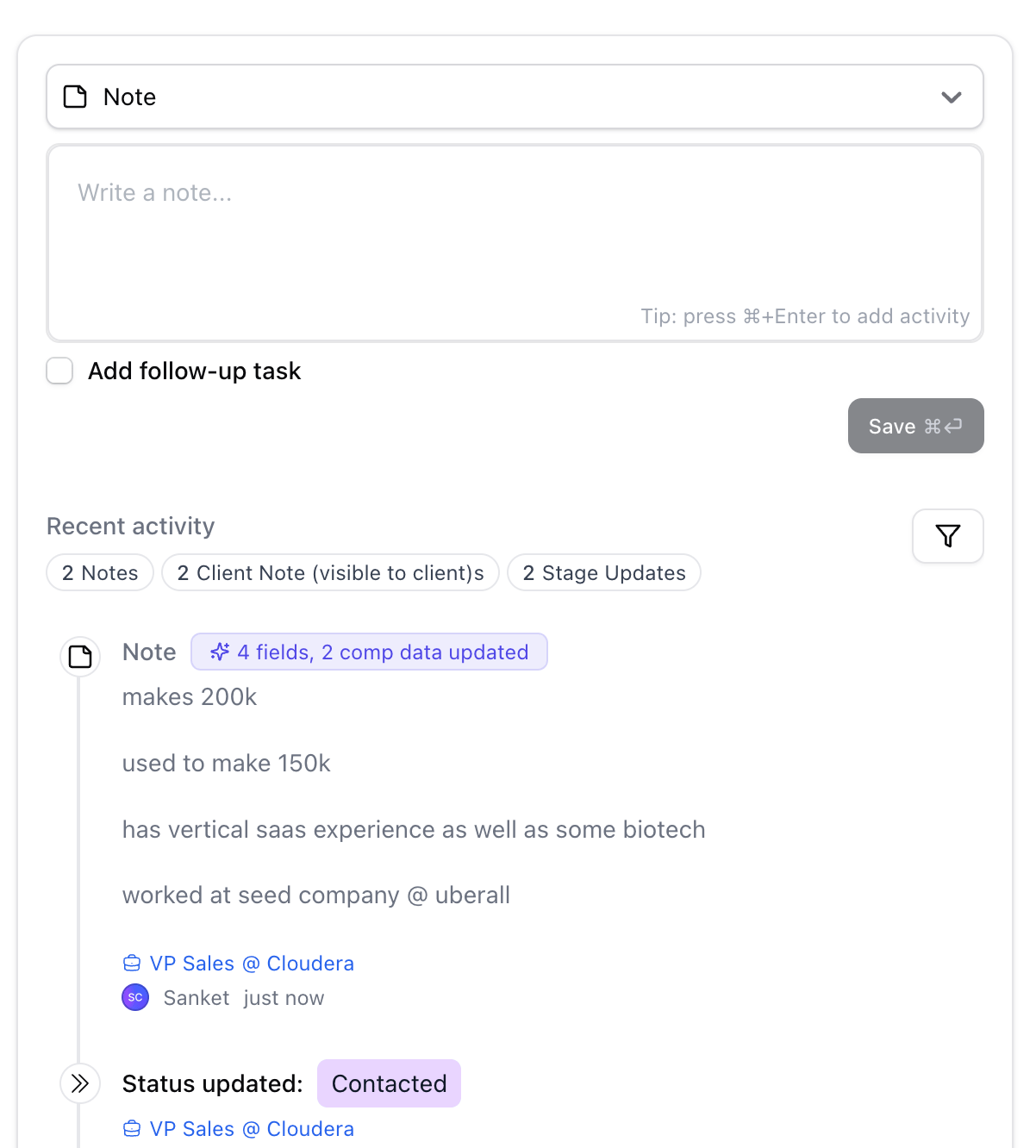
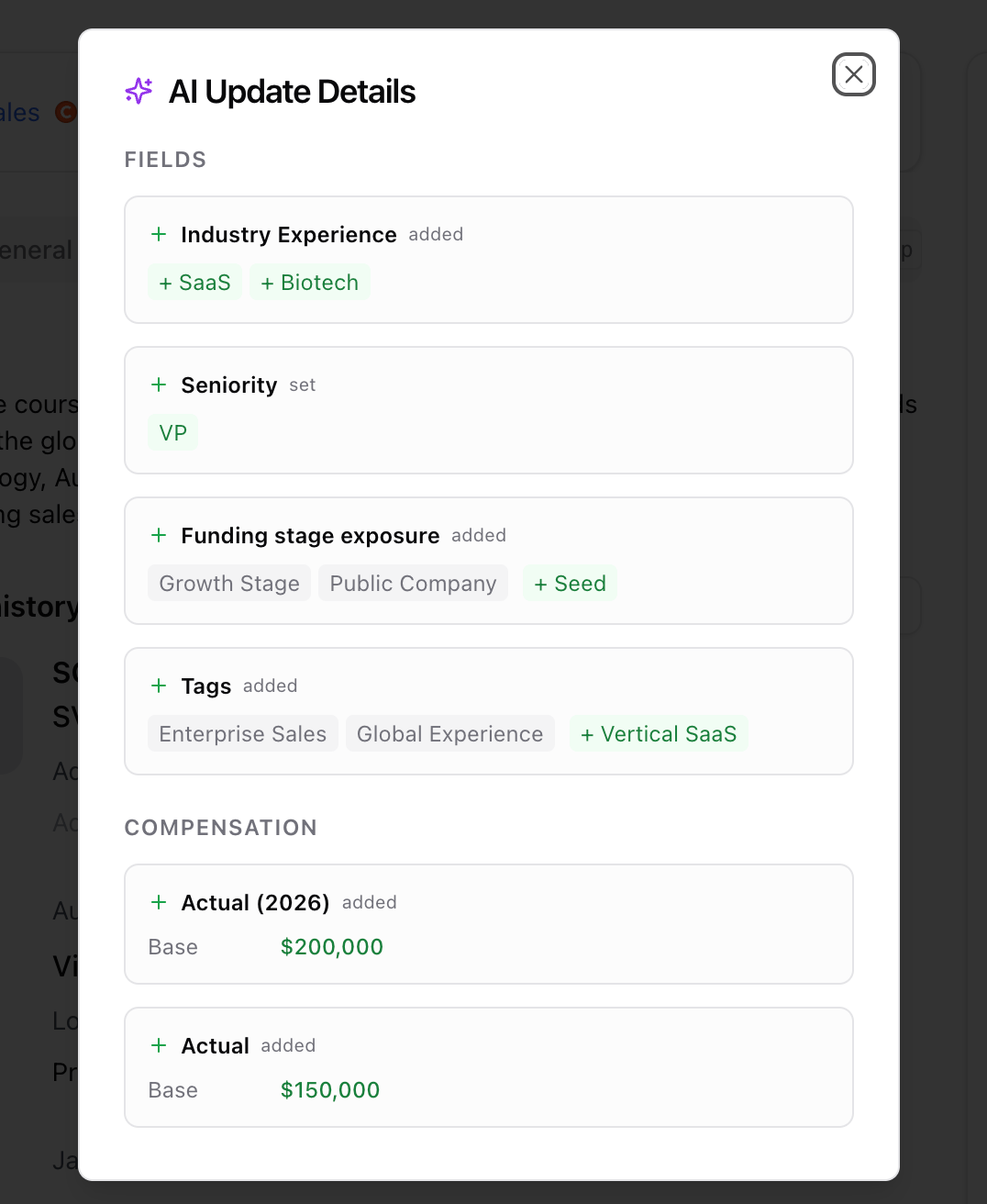
1. **AI Auto-Tagging & Compensation** — reads the activity content and updates relevant custom fields and compensation data on the person's profile. You will see a badge next to the activity if it updated fields or comp data. You can click on the badge to see what fields got updated
2. **AI Task Generation** — reads the activity content and creates follow-up tasks based on what was discussed or agreed.
Both run in parallel. You can keep working — updates appear within a minute or two.
***
## AI Auto-Tagging & Compensation
**On by default.**
After an activity is saved, the AI scans the content and:
* Updates **custom fields** on the person's profile that have AI tagging enabled
* Records **compensation data** (base salary, bonus, currency, etc.) if mentioned in the activity
You'll know it ran by the sparkle badge on the activity in the timeline. Click it to see a before-and-after view of every field and compensation value the AI updated.
If the content isn't meaningful enough to extract anything (e.g. "left a voicemail"), the AI skips it silently.
**To turn off:** Settings → AI Features → AI Auto-Tagging & Compensation (admins only)
[https://stardex.com/settings?tab=organization\§ion=ai-automation](https://stardex.com/settings?tab=organization\§ion=ai-automation)
***
## Custom fields: enabling AI tagging per field
AI Auto-Tagging only updates fields that have been explicitly opted in. To enable a field, open the field editor and check **"Use AI to auto tag this field based on profile information"**.
Supported field types: **single-select**, **multi-select**, **text**, **URL**, and **decimal**.
**To manage custom fields:** Settings → Data Model
More on custom fields [Custom fields](/help-center/custom-fields)
***
## AI Task Generation
**Off by default.**
When turned on, the AI reads each new activity and creates follow-up tasks automatically — for example, if a note says "follow up next week", a task gets created.
Tasks appear on the person's profile within a minute or two of saving the activity.
**To turn on:** Settings → AI & Automation → AI Task Generation (admins only)
[https://stardex.com/settings?tab=organization\§ion=ai-automation](https://stardex.com/settings?tab=organization\§ion=ai-automation)
***
## API & Chrome extension
Activities created via the Stardex API, Zapier, or the Chrome extension go through the same AI pipelines. No additional setup needed — both auto-tagging and task generation run automatically based on your org settings.
***
## Summary
| Feature | On by default | Where to configure |
| - | - | - |
| AI Auto-Tagging & Compensation | Yes | Settings → AI Features |
| AI Task Generation | No | Settings → AI Features |
| Per-field AI tagging | Off per field | Settings → Data Model → Edit Field |
This documentation is built and hosted on [Mintlify](https://mintlify.com), a developer documentation platform.
***
## What happens when you save an activity
As soon as an activity is saved, Stardex kicks off two independent AI pipelines in the background:
1. **AI Auto-Tagging & Compensation** — reads the activity content and updates relevant custom fields and compensation data on the person's profile. You will see a badge next to the activity if it updated fields or comp data. You can click on the badge to see what fields got updated
2. **AI Task Generation** — reads the activity content and creates follow-up tasks based on what was discussed or agreed.
Both run in parallel. You can keep working — updates appear within a minute or two.
***
## AI Auto-Tagging & Compensation
**On by default.**
After an activity is saved, the AI scans the content and:
* Updates **custom fields** on the person's profile that have AI tagging enabled
* Records **compensation data** (base salary, bonus, currency, etc.) if mentioned in the activity
You'll know it ran by the sparkle badge on the activity in the timeline. Click it to see a before-and-after view of every field and compensation value the AI updated.
If the content isn't meaningful enough to extract anything (e.g. "left a voicemail"), the AI skips it silently.
**To turn off:** Settings → AI Features → AI Auto-Tagging & Compensation (admins only)
[https://stardex.com/settings?tab=organization\§ion=ai-automation](https://stardex.com/settings?tab=organization\§ion=ai-automation)
***
## Custom fields: enabling AI tagging per field
AI Auto-Tagging only updates fields that have been explicitly opted in. To enable a field, open the field editor and check **"Use AI to auto tag this field based on profile information"**.
Supported field types: **single-select**, **multi-select**, **text**, **URL**, and **decimal**.
**To manage custom fields:** Settings → Data Model
More on custom fields [Custom fields](/help-center/custom-fields)
***
## AI Task Generation
**Off by default.**
When turned on, the AI reads each new activity and creates follow-up tasks automatically — for example, if a note says "follow up next week", a task gets created.
Tasks appear on the person's profile within a minute or two of saving the activity.
**To turn on:** Settings → AI & Automation → AI Task Generation (admins only)
[https://stardex.com/settings?tab=organization\§ion=ai-automation](https://stardex.com/settings?tab=organization\§ion=ai-automation)
***
## API & Chrome extension
Activities created via the Stardex API, Zapier, or the Chrome extension go through the same AI pipelines. No additional setup needed — both auto-tagging and task generation run automatically based on your org settings.
***
## Summary
| Feature | On by default | Where to configure |
| - | - | - |
| AI Auto-Tagging & Compensation | Yes | Settings → AI Features |
| AI Task Generation | No | Settings → AI Features |
| Per-field AI tagging | Off per field | Settings → Data Model → Edit Field |
This documentation is built and hosted on [Mintlify](https://mintlify.com), a developer documentation platform.