> ## Documentation Index
> Fetch the complete documentation index at: https://docs.stardex.com/llms.txt
> Use this file to discover all available pages before exploring further.
# Advanced campaign features
> Configure campaign sending, enrollment, tracking, and advanced options for outreach sequences.
## **Attach files to campaign email steps**
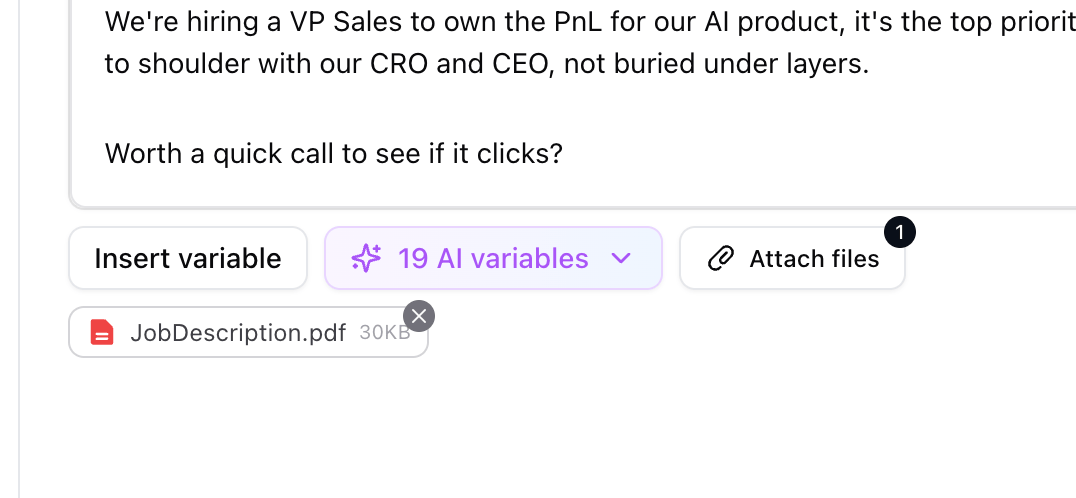
You can attach files directly to an email step in a campaign. Everyone who hits that step gets the same attachments.
### **How to add attachments**
1. Open a campaign and select an **email** step
2. Use the attachments control on the step to upload files
3. Save the campaign
Attachments are previewed when you enroll someone (web and Chrome extension), and they go out with the email at send time. What was actually sent is also visible on the recipient’s stage history so you can download it later.
Attachments live on the **step**, not the person. If you update the files on a step before people reach it, pending recipients get the updated set. There are count and size limits (25 MB total).
**Related:** One-off email templates can also carry attachments now — staple a file to a template and it attaches automatically whenever you use that template for a single send.
 ***
## **Pause the campaign until a manual task is completed**
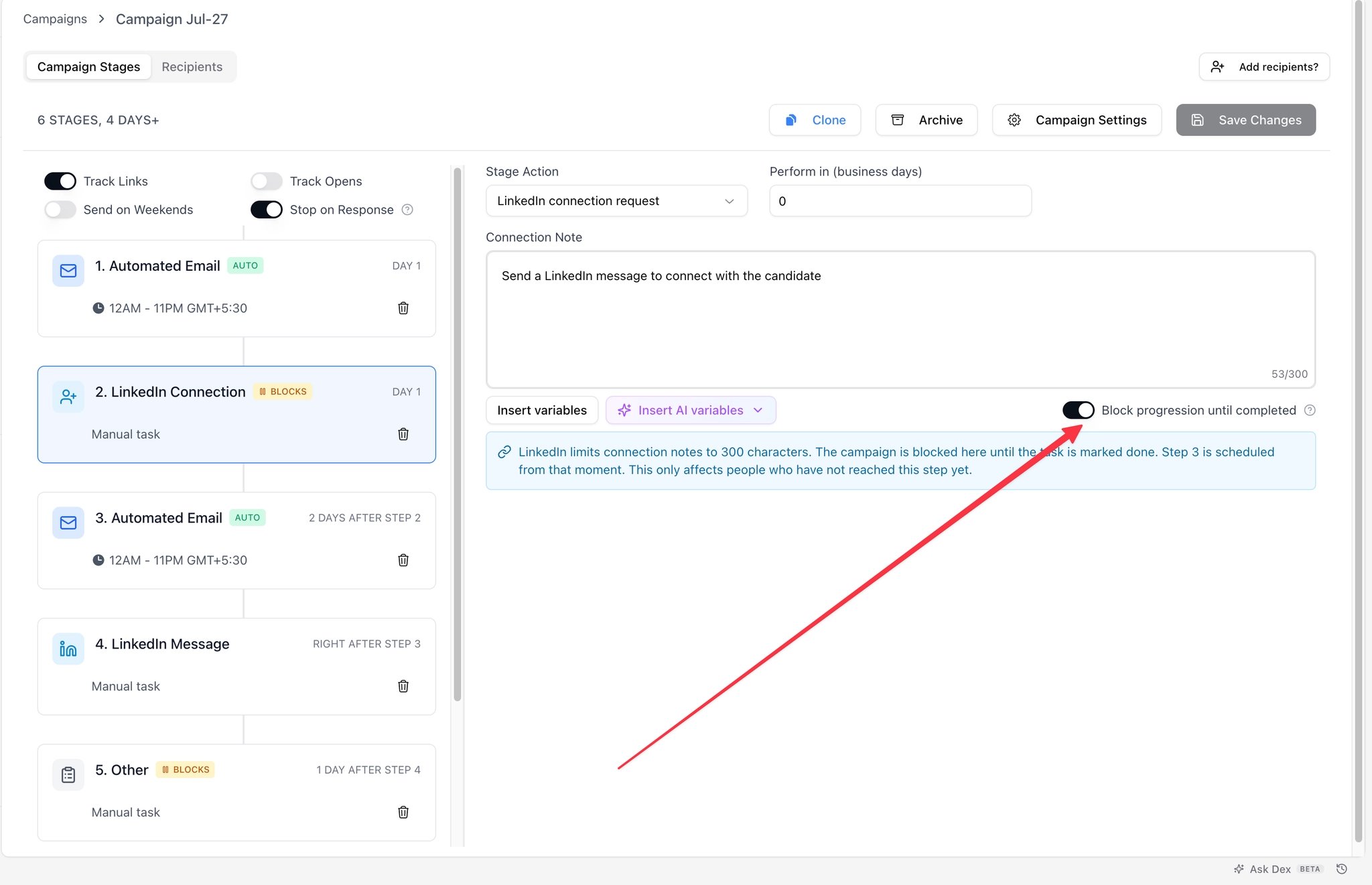
Manual steps (LinkedIn, call, custom task, etc.) can optionally **block** the rest of the sequence until that task is marked done.
### **How to turn it on**
1. Open the campaign builder and select a **manual** step
2. Toggle **Block progression until completed**
3. Save
When on: the person parks in **Awaiting task**. Completing the task schedules the next step from that moment.
When off (default): the task is created and the campaign continues on its normal schedule whether or not anyone finished the task.
If someone has been waiting a long time since the last email, completing the task may ask you to confirm before the next automated email goes out — so you don’t accidentally resume a cold thread.
You can complete these tasks from the web app, the campaign’s Tasks tab, or the Chrome extension.
***
## **Pause the campaign until a manual task is completed**
Manual steps (LinkedIn, call, custom task, etc.) can optionally **block** the rest of the sequence until that task is marked done.
### **How to turn it on**
1. Open the campaign builder and select a **manual** step
2. Toggle **Block progression until completed**
3. Save
When on: the person parks in **Awaiting task**. Completing the task schedules the next step from that moment.
When off (default): the task is created and the campaign continues on its normal schedule whether or not anyone finished the task.
If someone has been waiting a long time since the last email, completing the task may ask you to confirm before the next automated email goes out — so you don’t accidentally resume a cold thread.
You can complete these tasks from the web app, the campaign’s Tasks tab, or the Chrome extension.
 ***
## **Tasks in the Chrome extension**
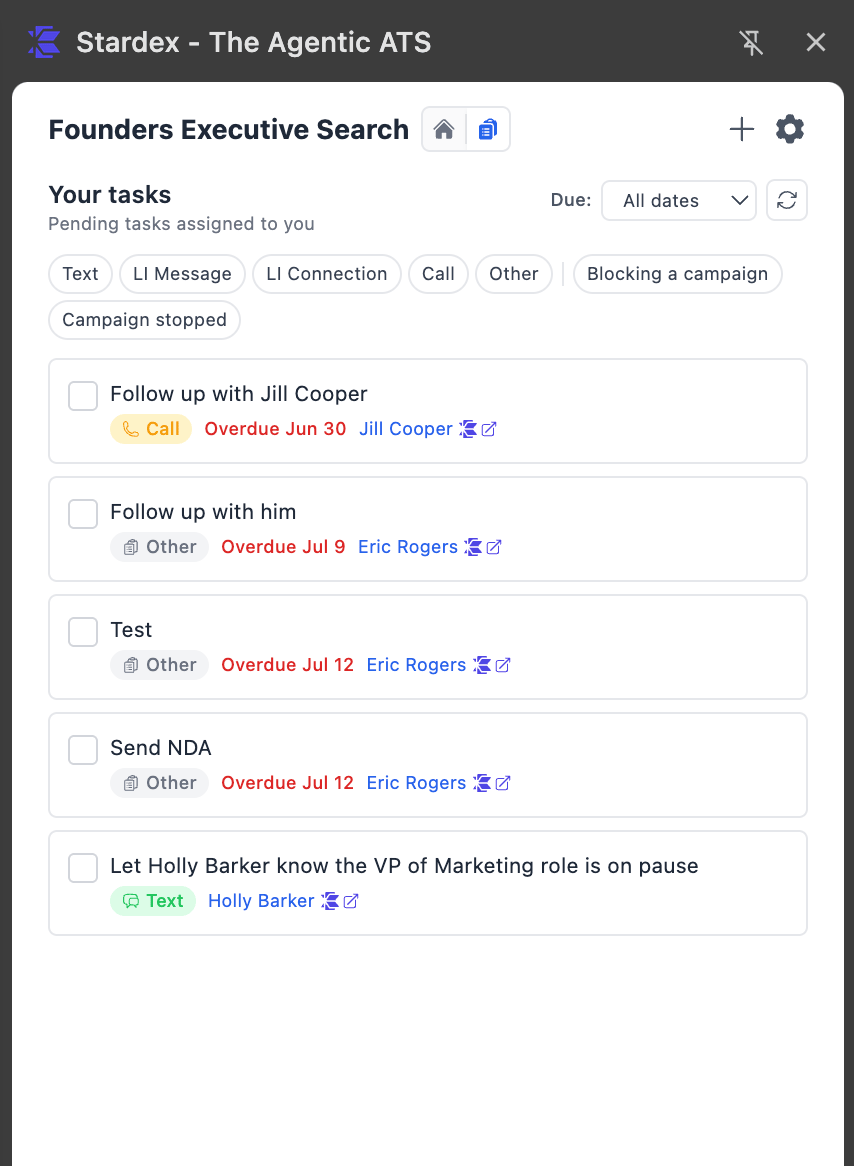
The extension side panel now has a **Home / Tasks** segmented control in the header.
### **What you can do**
* See your pending tasks across the workspace
* Filter by type, due date (Today / This week / Overdue / All), and campaign-related status (blocking vs not)
* Complete tasks inline — including ones that are holding a campaign
Person profiles in the extension also show that person’s tasks, so you can finish a LinkedIn touch and unblock the sequence without leaving LinkedIn.
***
## **Tasks in the Chrome extension**
The extension side panel now has a **Home / Tasks** segmented control in the header.
### **What you can do**
* See your pending tasks across the workspace
* Filter by type, due date (Today / This week / Overdue / All), and campaign-related status (blocking vs not)
* Complete tasks inline — including ones that are holding a campaign
Person profiles in the extension also show that person’s tasks, so you can finish a LinkedIn touch and unblock the sequence without leaving LinkedIn.
 ***
## **Recipients tab (+ Campaign Tasks tab)**
The Recipients tab helps you slice and dice through candidates and clients enrolled in large campaigns.
### **What you can do:**
* **Quick filter using the Status pills** with live counts (including **Awaiting task**)
* Richer filters: status, step, reply intent, opens/clicks thresholds, enrolled date, search
* **Select all recipients matching** your current filters (not just the visible page)
* Bulk actions: skip, stop, add to another campaign or list
* Header actions to **add recipients** and **stop all running**
***
## **Recipients tab (+ Campaign Tasks tab)**
The Recipients tab helps you slice and dice through candidates and clients enrolled in large campaigns.
### **What you can do:**
* **Quick filter using the Status pills** with live counts (including **Awaiting task**)
* Richer filters: status, step, reply intent, opens/clicks thresholds, enrolled date, search
* **Select all recipients matching** your current filters (not just the visible page)
* Bulk actions: skip, stop, add to another campaign or list
* Header actions to **add recipients** and **stop all running**
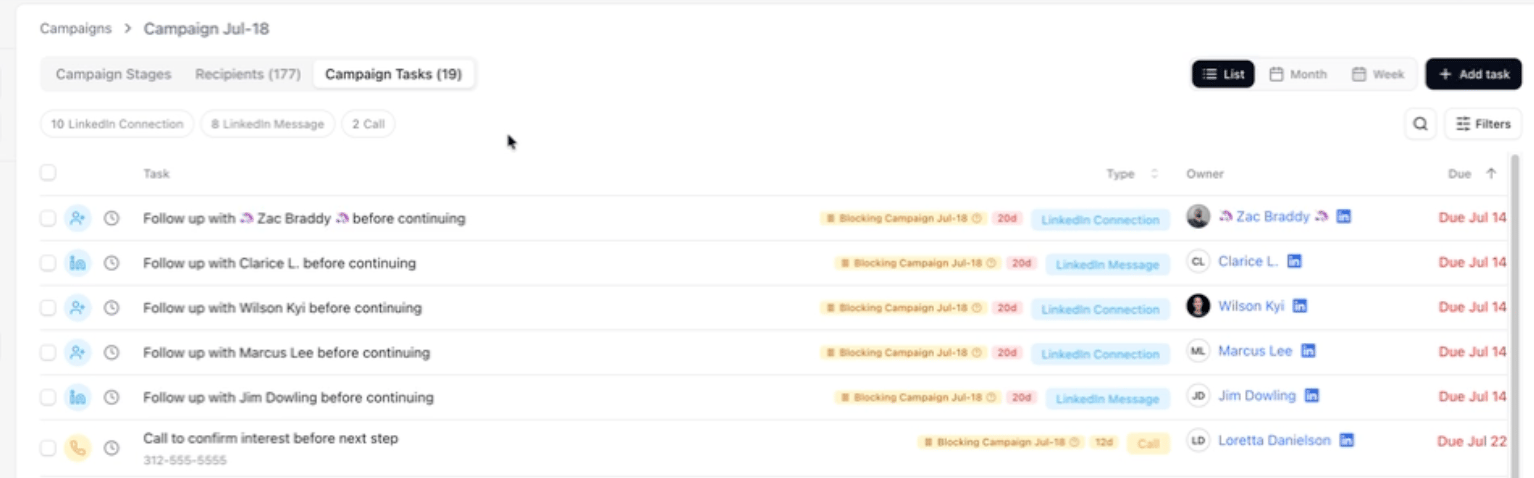
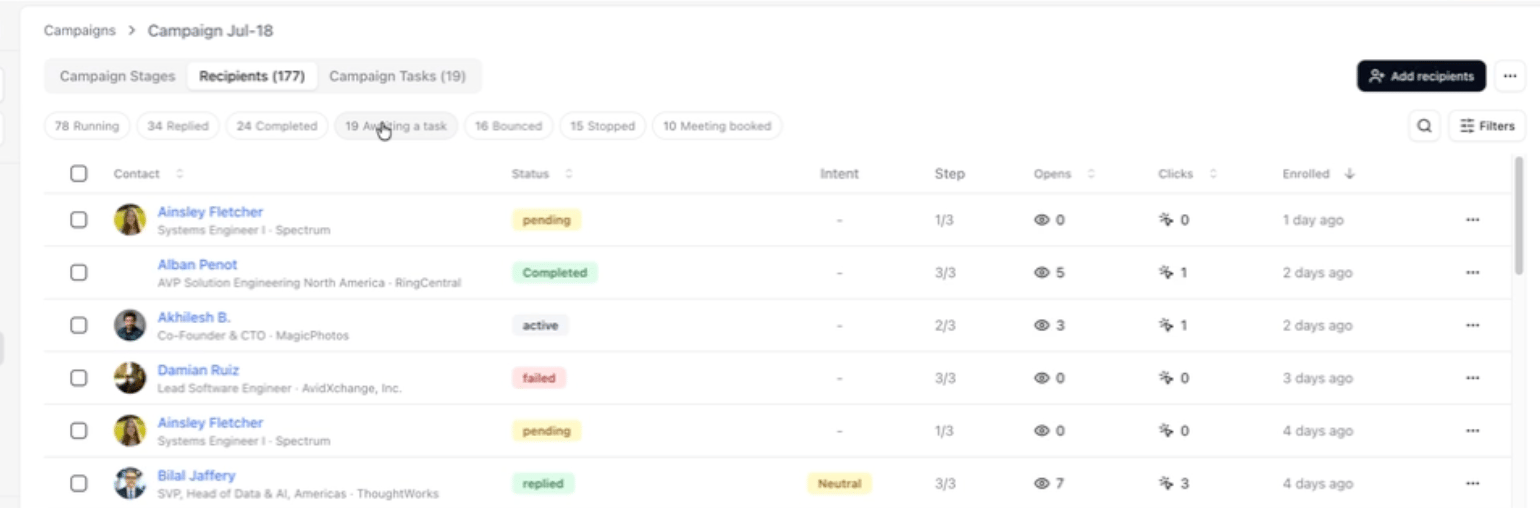 There’s also a new **Tasks** tab on the campaign detail page (`?tab=tasks`) that lists only tasks for that campaign — useful when you’re working through manual steps that are blocking progression. In the general Tasks tab, you can also filter by a specific campaign now:
 ***
## **Variable and bulk enroll improvements**
Personalization is more consistent across the builder, web enroll, and Chrome extension.
### **In the campaign builder**
* **Insert variables** uses a shared catalog with clear labels (person, sender, campaign, manual)
* Unrecognized `{{tokens}}` are flagged with replace suggestions
* You can rename AI variables across subject and body in one place
* Variables inside **links** resolve correctly (including URL encoding)
* Job / search names and client companies are now supported as auto-populating variables!
***
## **Variable and bulk enroll improvements**
Personalization is more consistent across the builder, web enroll, and Chrome extension.
### **In the campaign builder**
* **Insert variables** uses a shared catalog with clear labels (person, sender, campaign, manual)
* Unrecognized `{{tokens}}` are flagged with replace suggestions
* You can rename AI variables across subject and body in one place
* Variables inside **links** resolve correctly (including URL encoding)
* Job / search names and client companies are now supported as auto-populating variables!
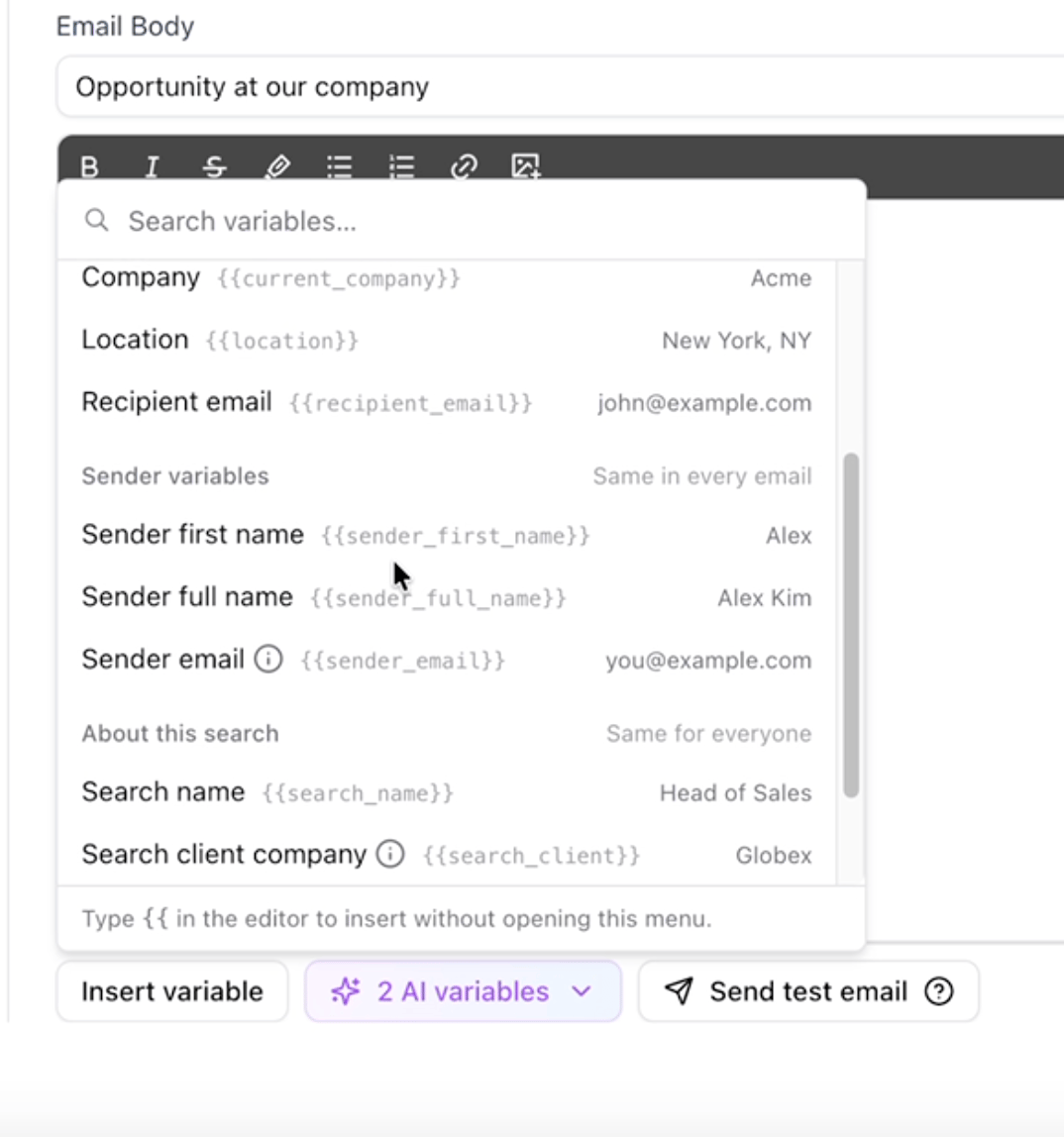 Lots of options, including “Search name” and “Search client company”
### **When enrolling**
* You can easily set all values for a variable to the same text value
* Blank a field when you don’t want it filled; undo if you change your mind
* AI variables can use the **target job/role** for better copy, and confidential client jobs won’t leak client names into generated text
* Custom fields on the person profile also feed into AI variable generation
Lots of options, including “Search name” and “Search client company”
### **When enrolling**
* You can easily set all values for a variable to the same text value
* Blank a field when you don’t want it filled; undo if you change your mind
* AI variables can use the **target job/role** for better copy, and confidential client jobs won’t leak client names into generated text
* Custom fields on the person profile also feed into AI variable generation
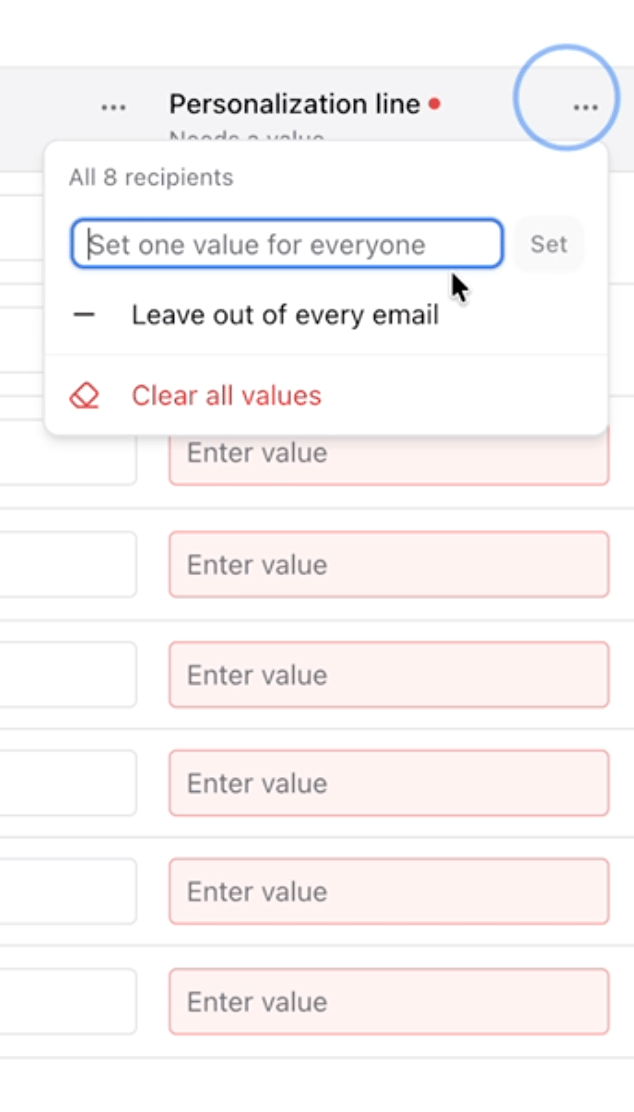 Set all to the same value or clear out all values intentionally
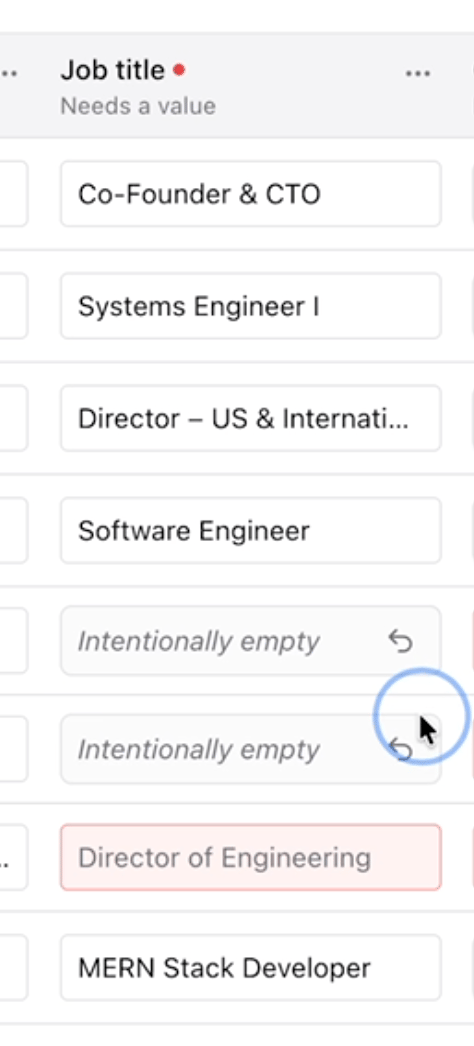 Set values as intentionally empty
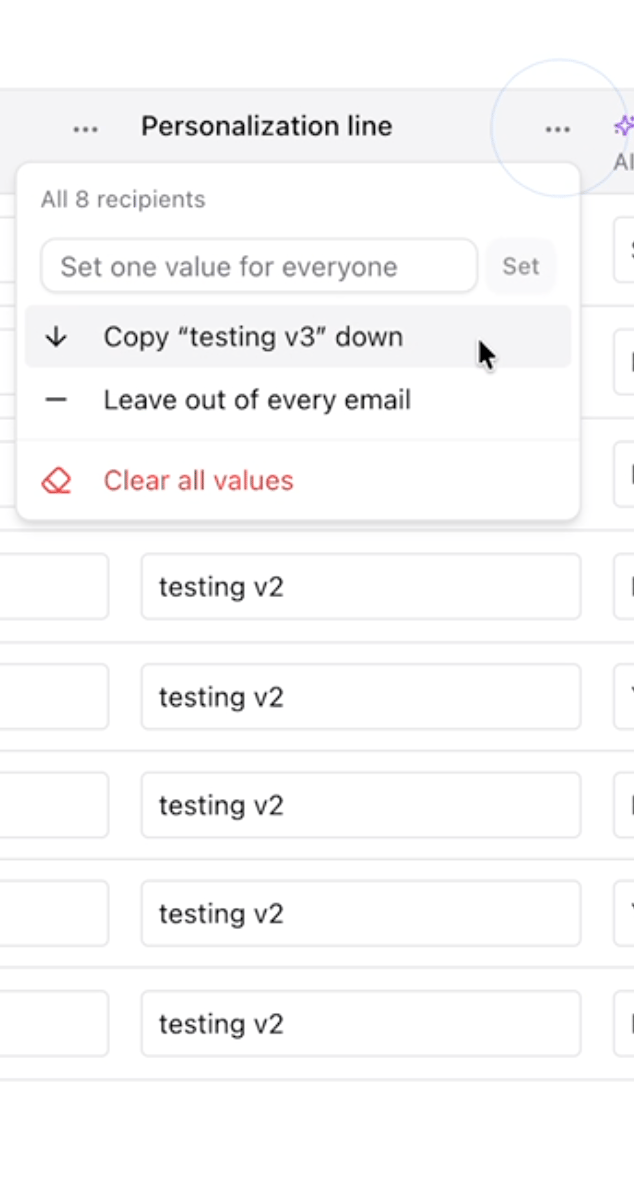 Copy top value down
### **Bulk enroll review**
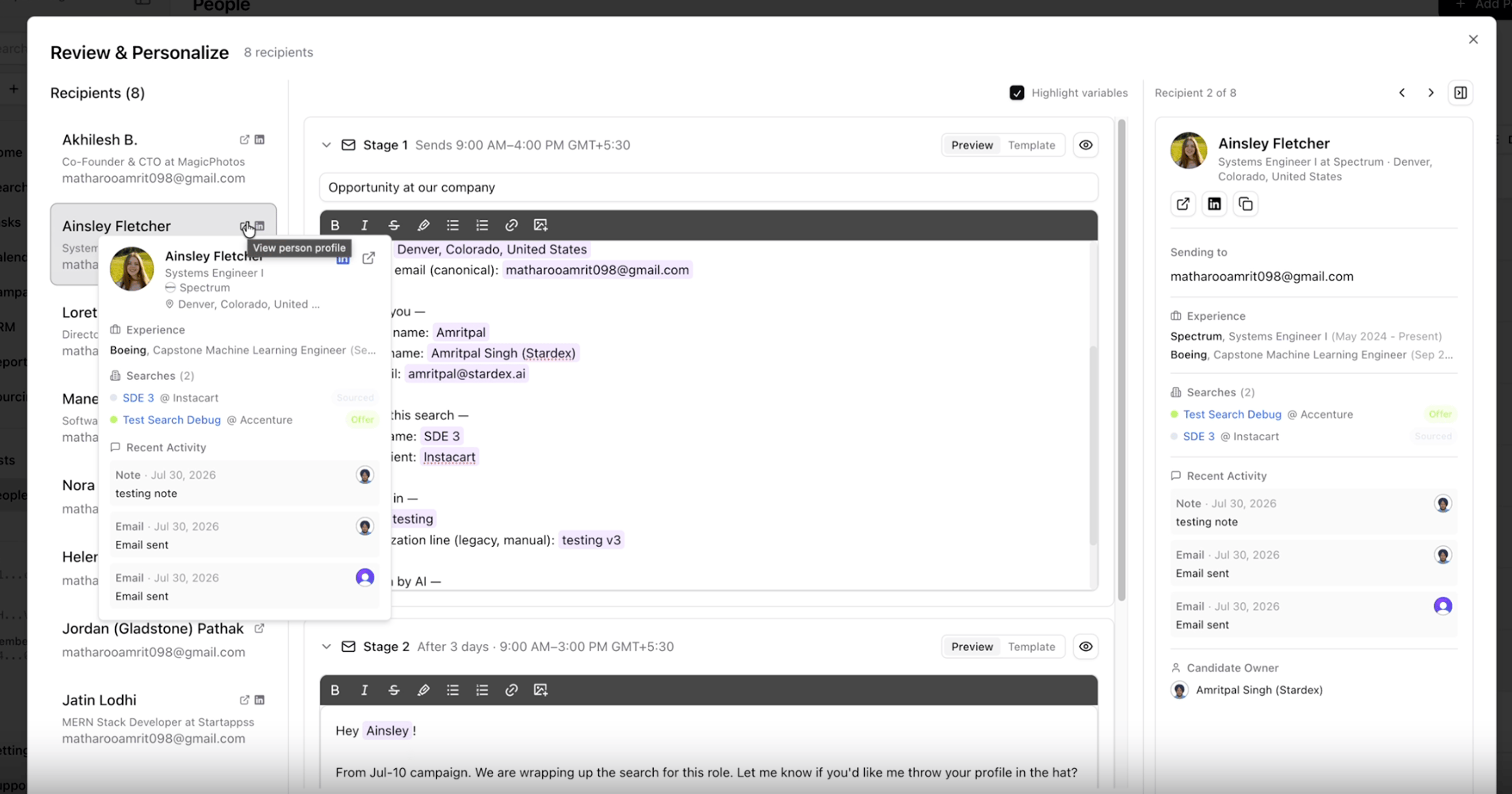
Bulk enroll review is a three-column flow:
1. Recipient rail (use keyboard keys J/K to move between people)
2. Per-recipient stage cards with template vs preview-as-recipient. The purple text is what was replaced by variables in the prior bulk enrollment screen.
3. Collapsible context panel
Preflight issues surface before you enroll, and you can schedule or enroll from the same screen.
Copy top value down
### **Bulk enroll review**
Bulk enroll review is a three-column flow:
1. Recipient rail (use keyboard keys J/K to move between people)
2. Per-recipient stage cards with template vs preview-as-recipient. The purple text is what was replaced by variables in the prior bulk enrollment screen.
3. Collapsible context panel
Preflight issues surface before you enroll, and you can schedule or enroll from the same screen.
 ***
## Campaign Admin Controls
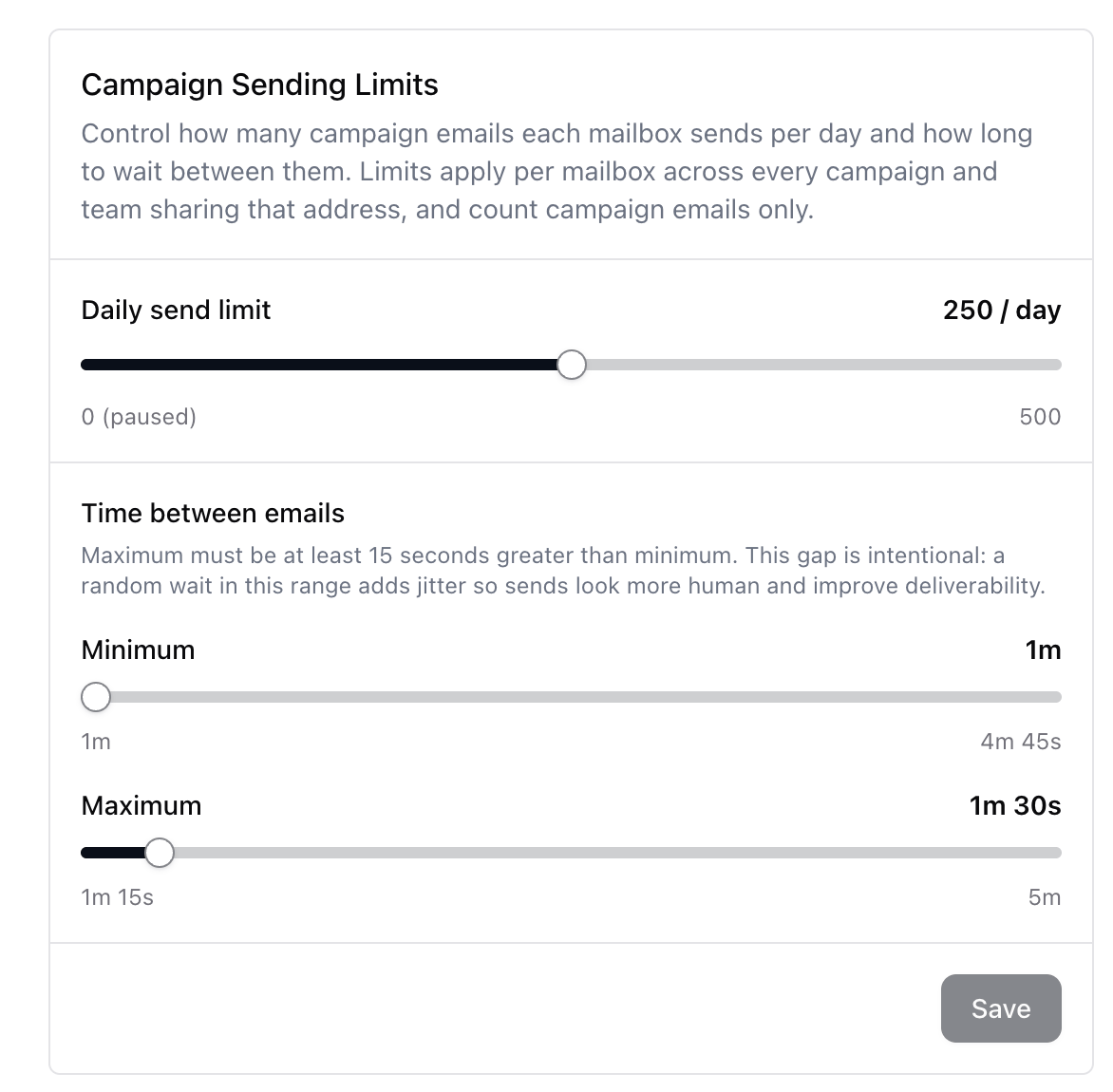
**Daily sending limits**
You can set daily sending limits that apply to every mailbox your team has connected to Stardex. Before enroll (including in the extension), you may see a timing/limits dialog if the mailbox can’t send immediately.
**Time between emails**
Under **Settings → Campaigns → Campaign Sending Limits**, set a min and max gap between emails from the same mailbox (jitter helps deliverability).
***
## Campaign Admin Controls
**Daily sending limits**
You can set daily sending limits that apply to every mailbox your team has connected to Stardex. Before enroll (including in the extension), you may see a timing/limits dialog if the mailbox can’t send immediately.
**Time between emails**
Under **Settings → Campaigns → Campaign Sending Limits**, set a min and max gap between emails from the same mailbox (jitter helps deliverability).
 This documentation is built and hosted on [Mintlify](https://mintlify.com), a developer documentation platform.