> ## Documentation Index
> Fetch the complete documentation index at: https://docs.stardex.com/llms.txt
> Use this file to discover all available pages before exploring further.
# Active Candidates: tracking candidates across all your jobs
> Track active candidates across searches, switch between list and board views, and find people who need follow-up.
***
When you're running five or ten jobs at once, checking each pipeline individually to find who needs attention takes too long. The Active Candidates page pulls every candidate from your non-archived jobs into a single view, sortable by last activity, filterable by job owner, status, or client.
## Filtering to your candidates and scanning for follow-ups
1. Open the **Home** page and click the **Active Candidates** tab
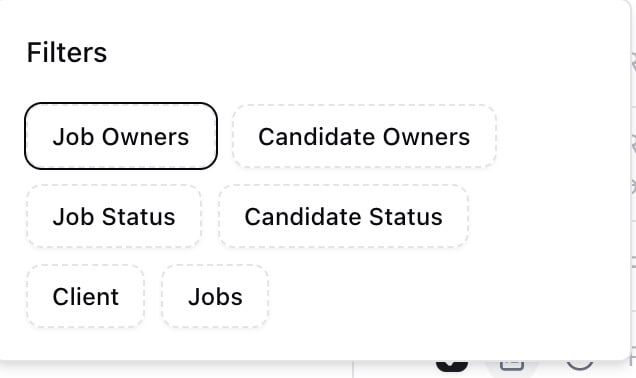
2. Click the filter icon to open the **Filters** popover
3. Set **Job Owners** to your name so only candidates from your jobs appear
4. Sort by **Last Activity** (click the column header) so the oldest activity surfaces at the bottom
5. Scan the list for candidates with stale dates — anyone without activity in several days probably needs a follow-up or status update
6. Click a candidate's name to open their profile, log a note, or move them to the next stage
 You can also reach Active Candidates at `/active-candidates` directly, or through the command menu (**Cmd+K** / **Ctrl+K**, then type "active candidates").
***
## Switching between List and Board
The view toggle at the top of the page has two modes.
### List
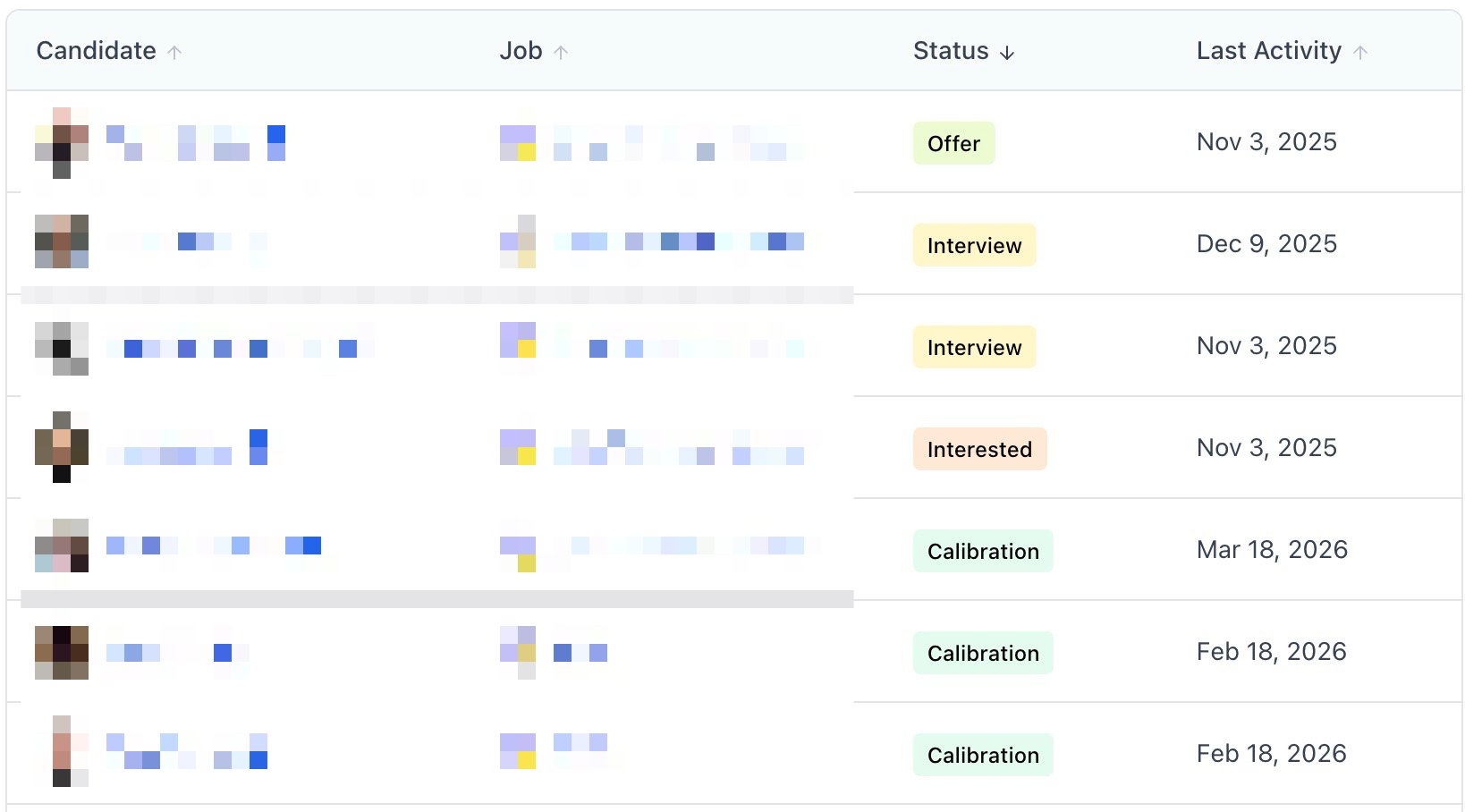
A sortable table with four columns:
* **Candidate** — name with avatar and LinkedIn link when available
* **Job** — job title with the client company
* **Status** — the candidate's current pipeline stage, shown as a colored badge
* **Last Activity** — date of the most recent note, email, or pipeline change. Hover for details. Shows "No activity" if nothing has been logged
Click any column header to sort. The default sort is **Last Activity** descending (most recent first). Click the same header again to reverse the order.
You can also reach Active Candidates at `/active-candidates` directly, or through the command menu (**Cmd+K** / **Ctrl+K**, then type "active candidates").
***
## Switching between List and Board
The view toggle at the top of the page has two modes.
### List
A sortable table with four columns:
* **Candidate** — name with avatar and LinkedIn link when available
* **Job** — job title with the client company
* **Status** — the candidate's current pipeline stage, shown as a colored badge
* **Last Activity** — date of the most recent note, email, or pipeline change. Hover for details. Shows "No activity" if nothing has been logged
Click any column header to sort. The default sort is **Last Activity** descending (most recent first). Click the same header again to reverse the order.
 ### Board
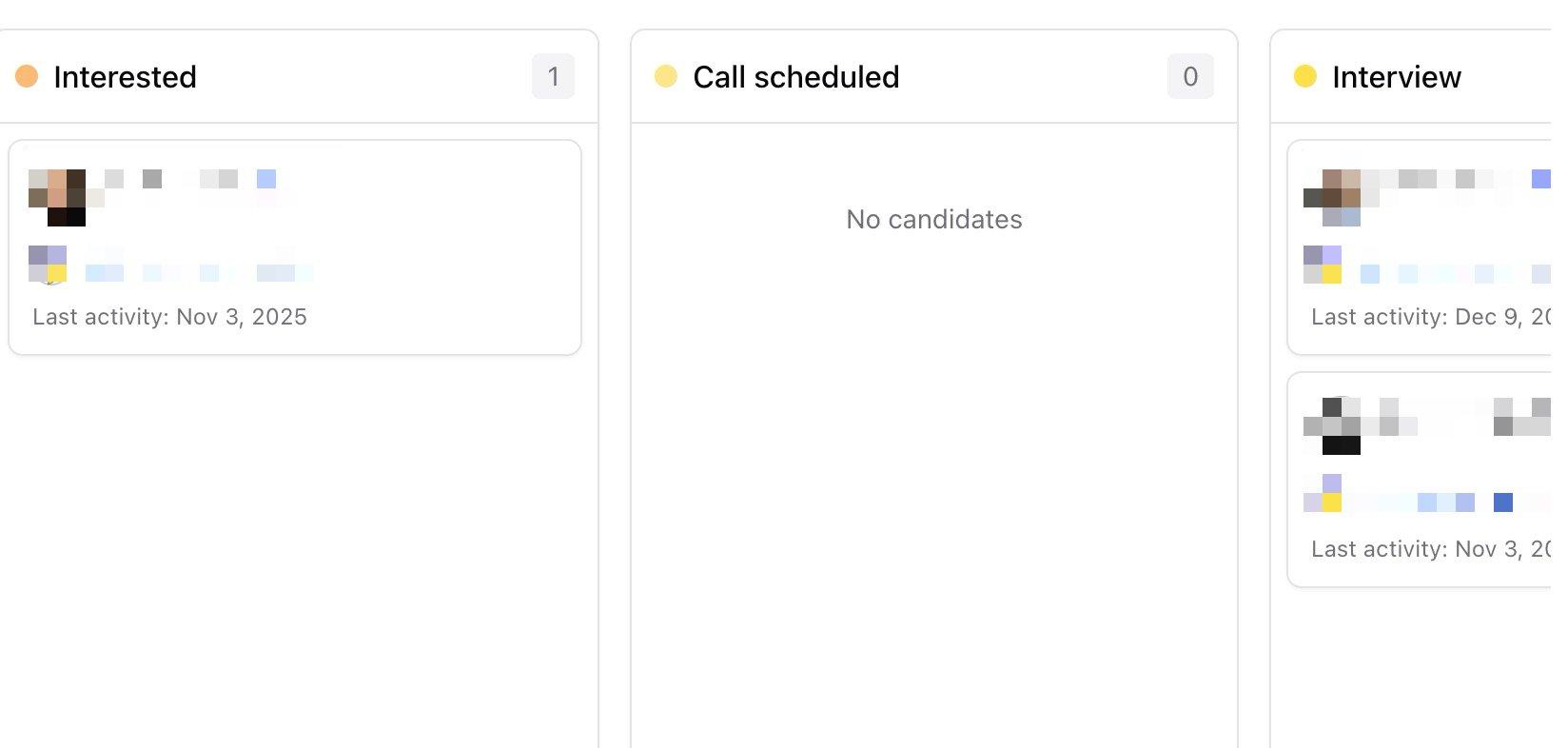
Candidates grouped into columns by pipeline stage. Each column shows the stage name, a color dot, and a count. A **No Status** column appears for candidates without an assigned stage. Cards show the candidate's name, job title, and last activity date.
This view is useful for spotting where candidates cluster — if one stage has significantly more cards than the others, that's usually where something is bottlenecked.
### Board
Candidates grouped into columns by pipeline stage. Each column shows the stage name, a color dot, and a count. A **No Status** column appears for candidates without an assigned stage. Cards show the candidate's name, job title, and last activity date.
This view is useful for spotting where candidates cluster — if one stage has significantly more cards than the others, that's usually where something is bottlenecked.
 Your view selection persists between sessions. Switch once and it stays that way until you change it.
***
## Filtering
Six filters are available in the **Filters** popover. Combine them to narrow the list to exactly what you need.
* **Job Owners** — show candidates only in jobs owned by specific team members
* **Candidate Owners** — filter by who owns the candidate relationship
* **Job Status** — filter by job status (e.g., only candidates in jobs marked as a specific status)
* **Candidate Status** — filter to candidates in specific pipeline stages
* **Client** — narrow to candidates in jobs for a specific client company
* **Jobs** — drill into one or more specific jobs
When three or more values are selected in a single filter, the badge shows the count (e.g., "3 selected"). Click **Clear filters** to reset everything.
Filter and sort settings are saved per organization and team. Leave the page and come back — your selections will still be there.
***
## What counts as an active candidate
The page shows candidates from jobs that are not archived and not deleted. If a job is archived or deleted, its candidates no longer appear here. The **Job Status** filter lets you narrow within active jobs (for example, only jobs with a particular status), but it does not bring back candidates from archived jobs.
Pagination at the bottom of the list shows "Showing X to Y of Z candidates" so you always know how many candidates match your current filters.
***
## Common use cases
* Daily check-in — open Active Candidates each morning, filter to your jobs, sort by last activity, and work the bottom of the list first
* Team standup — switch to Board view to show where candidates are clustering across stages and spot bottlenecks
* Client-specific review — set the **Client** filter before a client call to see every candidate in play for that account
* Monitoring team activity — set **Job Owners** to a team member's name to review their pipeline movement without opening each job
* Catching stale candidates — sort by **Last Activity** ascending to surface candidates who haven't had any touchpoint recently
***
## FAQ
**Q: Is there a keyboard shortcut to open Active Candidates?**
No dedicated shortcut, but you can use the command menu (**Cmd+K** / **Ctrl+K**) and type "active candidates" to navigate there quickly.
**Q: Can I move candidates between stages from this page?**
Not directly on this page. Click a candidate's name to open their profile, then update their pipeline stage from there.
**Q: Why is a candidate I expect missing from the list?**
Check whether the job is archived or deleted. Active Candidates only shows candidates from active jobs. Also check your filters — a filter on **Job Owners**, **Client**, or **Jobs** might be excluding them.
**Q: What does "No activity" mean in the Last Activity column?**
No notes, emails, or pipeline changes have been logged for that candidate in that job. This usually means the candidate was recently added but no one has taken action yet.
**Q: What is the "No Status" column in Board view?**
Candidates without a pipeline stage assigned. They've been added to a job but haven't been placed into any stage yet.
***
## Key takeaway
**Active Candidates is not a static report — it's your daily working view. Filter to your jobs, sort by last activity, and work the stale candidates first.**
***
## Related guides
* 👉 [Lists and how to use them](/help-center/lists-organizing-candidates-and-companies) — for grouping candidates outside of job pipelines
* 👉 [Searching your database with AI](/help-center/searching-your-database-with-ai) — find candidates by description rather than scanning manually
This documentation is built and hosted on [Mintlify](https://mintlify.com), a developer documentation platform.
Your view selection persists between sessions. Switch once and it stays that way until you change it.
***
## Filtering
Six filters are available in the **Filters** popover. Combine them to narrow the list to exactly what you need.
* **Job Owners** — show candidates only in jobs owned by specific team members
* **Candidate Owners** — filter by who owns the candidate relationship
* **Job Status** — filter by job status (e.g., only candidates in jobs marked as a specific status)
* **Candidate Status** — filter to candidates in specific pipeline stages
* **Client** — narrow to candidates in jobs for a specific client company
* **Jobs** — drill into one or more specific jobs
When three or more values are selected in a single filter, the badge shows the count (e.g., "3 selected"). Click **Clear filters** to reset everything.
Filter and sort settings are saved per organization and team. Leave the page and come back — your selections will still be there.
***
## What counts as an active candidate
The page shows candidates from jobs that are not archived and not deleted. If a job is archived or deleted, its candidates no longer appear here. The **Job Status** filter lets you narrow within active jobs (for example, only jobs with a particular status), but it does not bring back candidates from archived jobs.
Pagination at the bottom of the list shows "Showing X to Y of Z candidates" so you always know how many candidates match your current filters.
***
## Common use cases
* Daily check-in — open Active Candidates each morning, filter to your jobs, sort by last activity, and work the bottom of the list first
* Team standup — switch to Board view to show where candidates are clustering across stages and spot bottlenecks
* Client-specific review — set the **Client** filter before a client call to see every candidate in play for that account
* Monitoring team activity — set **Job Owners** to a team member's name to review their pipeline movement without opening each job
* Catching stale candidates — sort by **Last Activity** ascending to surface candidates who haven't had any touchpoint recently
***
## FAQ
**Q: Is there a keyboard shortcut to open Active Candidates?**
No dedicated shortcut, but you can use the command menu (**Cmd+K** / **Ctrl+K**) and type "active candidates" to navigate there quickly.
**Q: Can I move candidates between stages from this page?**
Not directly on this page. Click a candidate's name to open their profile, then update their pipeline stage from there.
**Q: Why is a candidate I expect missing from the list?**
Check whether the job is archived or deleted. Active Candidates only shows candidates from active jobs. Also check your filters — a filter on **Job Owners**, **Client**, or **Jobs** might be excluding them.
**Q: What does "No activity" mean in the Last Activity column?**
No notes, emails, or pipeline changes have been logged for that candidate in that job. This usually means the candidate was recently added but no one has taken action yet.
**Q: What is the "No Status" column in Board view?**
Candidates without a pipeline stage assigned. They've been added to a job but haven't been placed into any stage yet.
***
## Key takeaway
**Active Candidates is not a static report — it's your daily working view. Filter to your jobs, sort by last activity, and work the stale candidates first.**
***
## Related guides
* 👉 [Lists and how to use them](/help-center/lists-organizing-candidates-and-companies) — for grouping candidates outside of job pipelines
* 👉 [Searching your database with AI](/help-center/searching-your-database-with-ai) — find candidates by description rather than scanning manually
This documentation is built and hosted on [Mintlify](https://mintlify.com), a developer documentation platform.